Workflows
Create a Workflow
A workflow is a rule your church would otherwise rely on someone remembering: when a first-time guest fills in a connect card, send them a welcome email and give the pastor a task to call them.
-
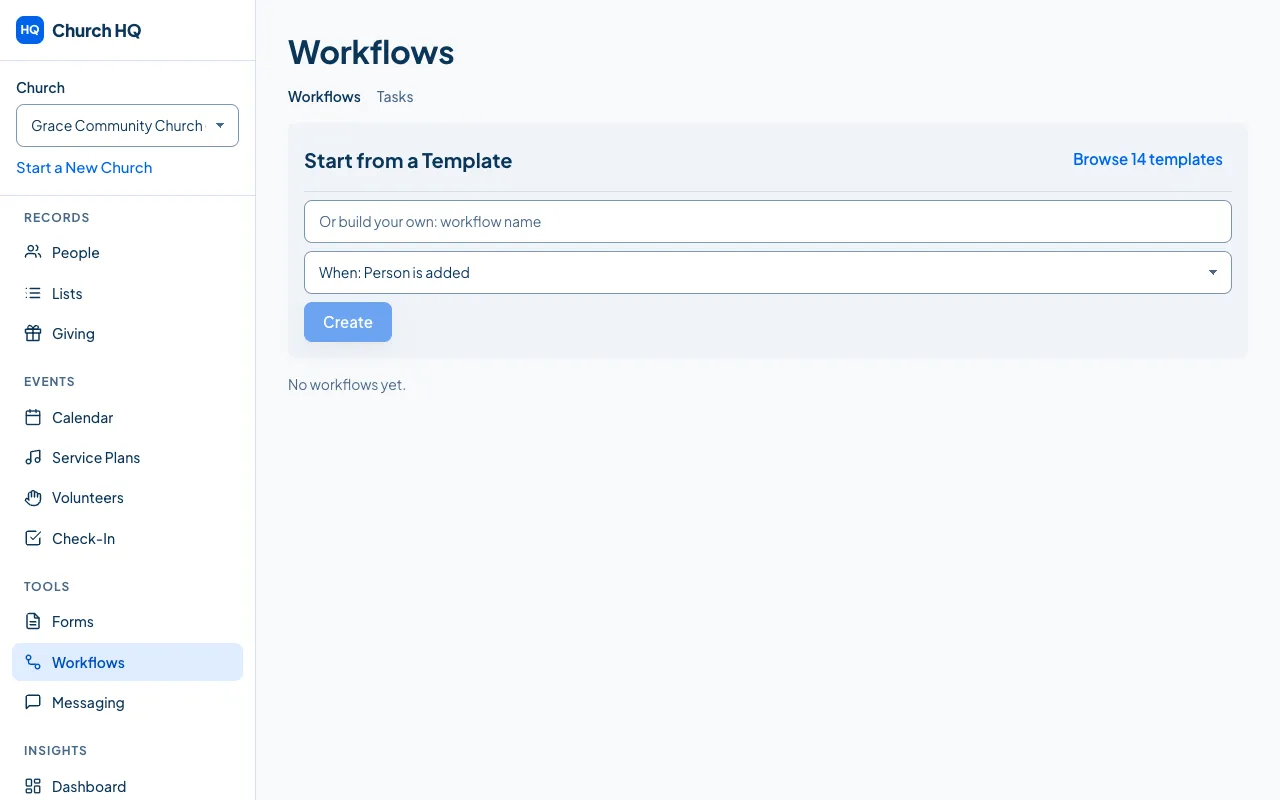
Choose Workflows in the sidebar, under TOOLS.
-
Start from one of the starter templates, which cover what most churches want first, or build your own.
-
Set the trigger, which is what starts it: someone joins a list, a form is submitted, a donation arrives, a date passes.
-
Add the steps: send an email or a text from a template, add or remove a tag, create a task for a member of staff, wait a few days before the next step.
-
Test it before you turn it on. Test mode runs the workflow without sending anything to anybody, and shows you what would have happened.
-
Turn it on.
Watching it work
Section titled “Watching it work”Each workflow keeps its own run history: who it ran for, when, and what each step did. That is where to look when someone asks whether a person was emailed.
Good to know
Section titled “Good to know”- Test mode first, every time. A workflow that emails the wrong list is a bad afternoon.
- Workflows send through your church’s own accounts, so email needs a provider connected and texts need Twilio. See Send a Message.
- Workflows are part of Pro.
Still stuck? Contact the Help Desk at help@mychurchhq.com and tell us which guide you were following.