Getting Started
Find Your Way Around Church HQ
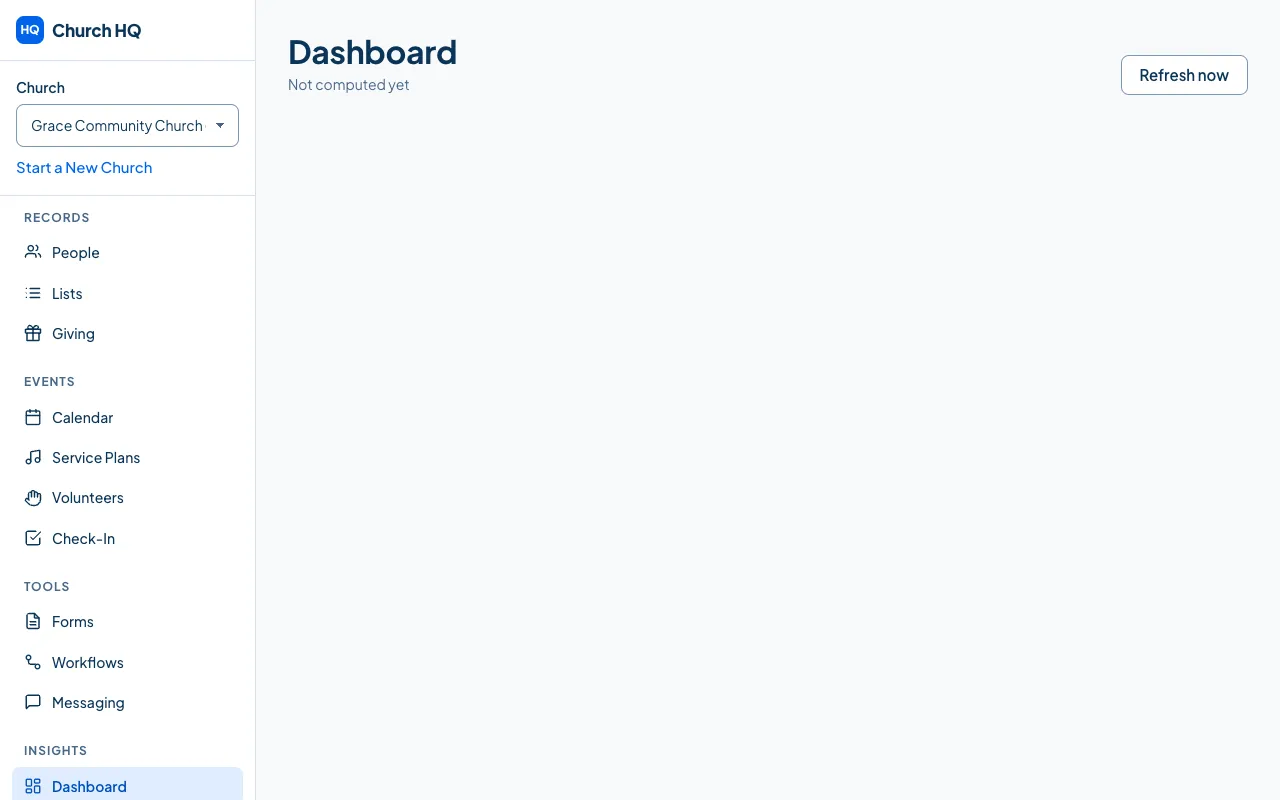
Everything in Church HQ hangs off the sidebar on the left. It is grouped, so related work sits together.
The groups
Section titled “The groups”RECORDS is what your church knows.
- People: every person and household.
- Lists: groups that keep themselves current, such as everyone who serves on a Sunday.
- Giving: donations, funds, recurring donations and giving statements.
EVENTS is what your church does.
- Calendar: events, series and attendance.
- Service Plans: the running order and songs for a service.
- Volunteers: teams, positions and schedules.
- Check-In: Sunday morning for children, with name tags and pickup codes.
TOOLS is the work that follows.
- Forms: collect information from people inside or outside your church.
- Workflows: routine follow-up that runs itself.
- Messaging: email and text messages through your church’s own accounts.
INSIGHTS is how it is going.
- Dashboard: the picture of the last few weeks.
- Reports: the numbers behind it.
Administration sits on its own at the bottom: your team and their access, church settings, campuses, giving settings, billing, import and export, privacy requests and the audit log.
Why your sidebar may look different
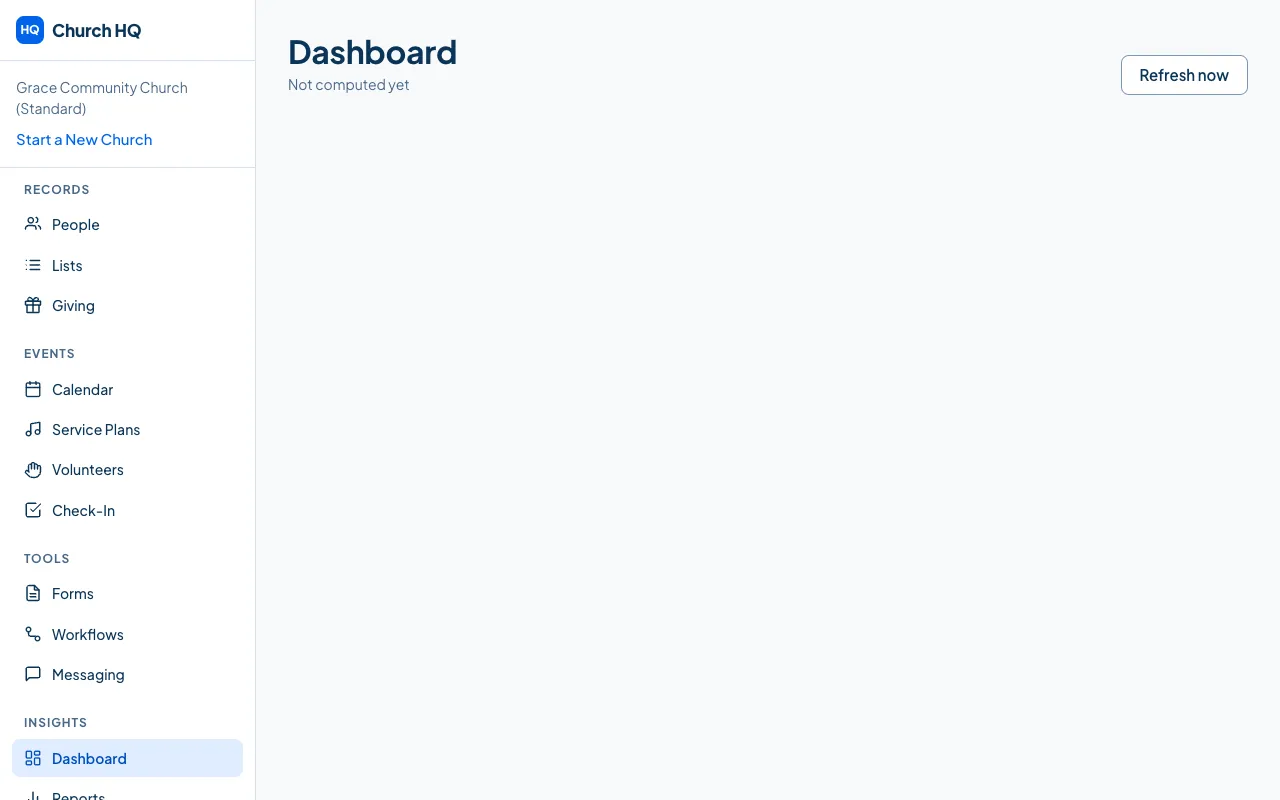
Section titled “Why your sidebar may look different”Church HQ only shows what you can actually use, so two people at the same church often see different sidebars.
- Your role. A Standard teammate sees the areas their work needs. A View Only teammate can read but not change. See What Each Role Can Do.
- Your access to protected information. Giving and Kids Check-In are hidden unless an Owner or Administrator has given you access. See Give or Remove Access to Protected Information.
- Your plan. Forms, Lists, Messaging, Service Plans and Workflows come with Pro. On Starter those items are not in the sidebar. See Upgrade or Downgrade Your Plan.
A whole group disappears when nothing in it applies to you, so you never look at an empty heading.
On a phone
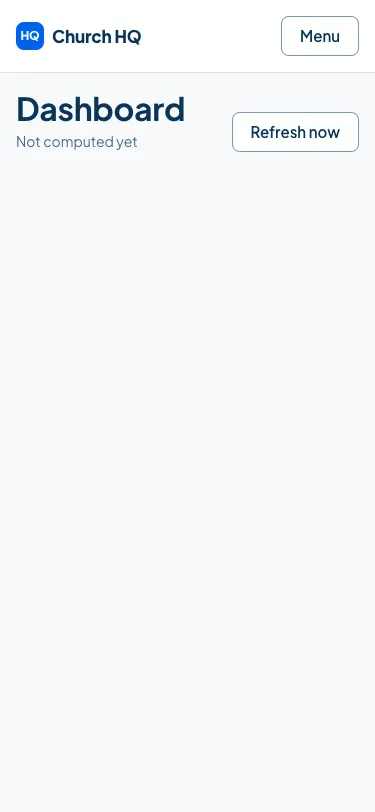
Section titled “On a phone”The sidebar folds behind Menu at the top. Choose it to open the list, choose an item to go there, and the list closes itself. Escape closes it too.
Other things in the sidebar
Section titled “Other things in the sidebar”- The Church picker at the top, if you belong to more than one church. See Choose and Switch Churches.
- Start a New Church under it.
- Sign Out at the bottom.
Still stuck? Contact the Help Desk at help@mychurchhq.com and tell us which guide you were following.