Giving
Record a Cash or Check Donation
Online donations record themselves. Cash and checks are typed in here, usually on a Monday.
Giving is protected information: it is only visible to Owners, Administrators, and teammates who have been given access. See Give or Remove Access to Protected Information.
-
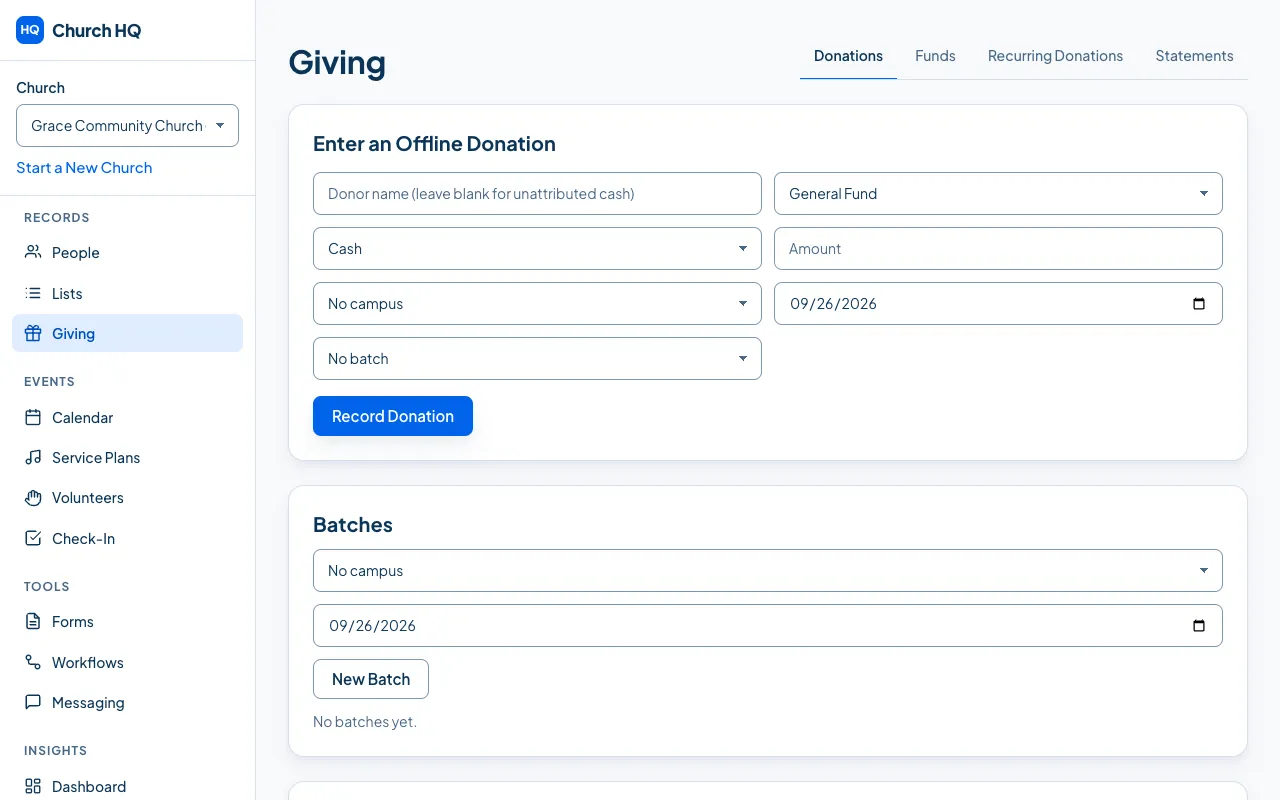
Choose Giving in the sidebar.
-
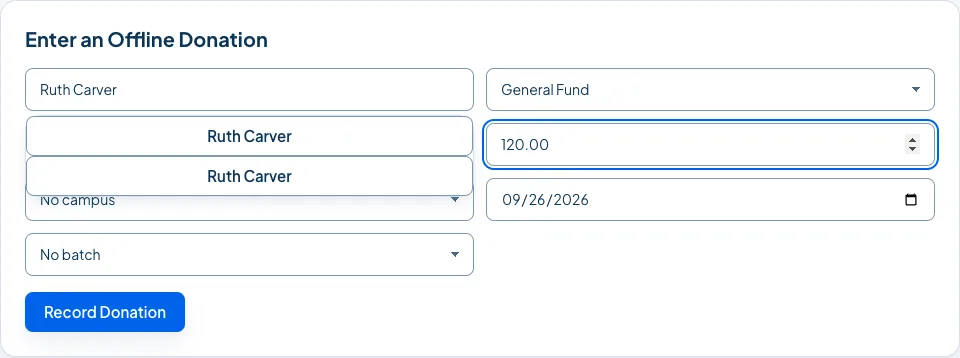
In Enter an Offline Donation, fill in:
- the donor’s name, or leave it blank for unattributed cash
- the Fund
- the Payment method: Cash or Check, with the check number if there is one
- the Amount
- the campus, the date it was given, and the batch, if you are using batches
-
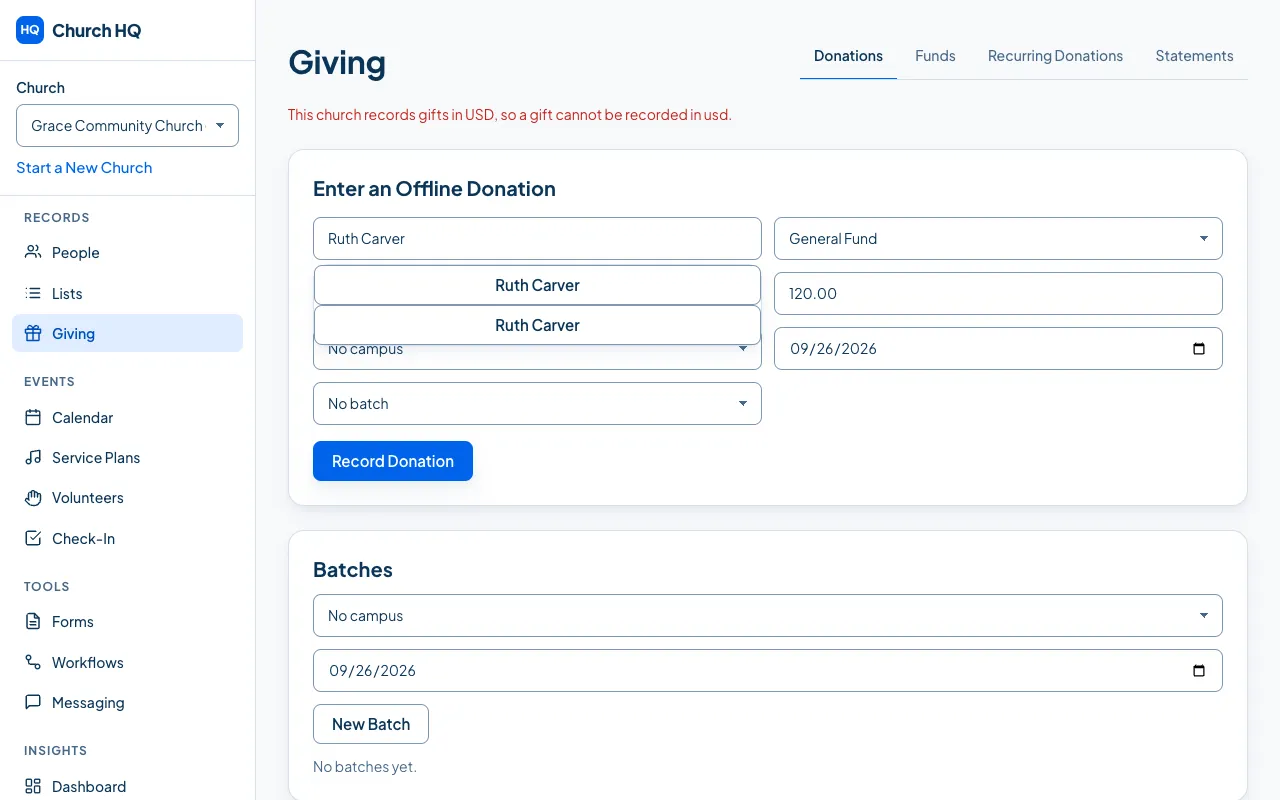
Choose Record Donation.
It appears in Donations immediately.
Batches
Section titled “Batches”A batch is one counting session: “Sunday 5 October, 9:00 service”. Create one under Batches, then record each donation into it. At the end you can compare Church HQ’s total with what your counters wrote down, which is the point of batches.
Refunds
Section titled “Refunds”A donation that should not have been taken can be refunded from its row in Donations: choose Refund, enter the amount and a reason, then Confirm.
- An online donation is refunded through Stripe, and the donor gets their money back.
- An offline donation is marked refunded so your totals and the donor’s statement are right.
- Either way the original donation stays on the record, marked as refunded or partly refunded.
- Only a gift that was collected can be refunded. A donation still pending, or one whose payment failed, has nothing to return, and Church HQ says so rather than recording a refund against money that never arrived.
Good to know
Section titled “Good to know”- Unattributed cash is fine. Leave the donor blank; it still counts in your totals, and it simply cannot appear on anyone’s statement.
- The date matters more than the day you type it. Use the date it was given, especially at the turn of the year.
Still stuck? Contact the Help Desk at help@mychurchhq.com and tell us which guide you were following.