Forms
Review Form Submissions
Answers arrive as submissions. Church HQ keeps them with the form, and tries to work out who each one is from.
-
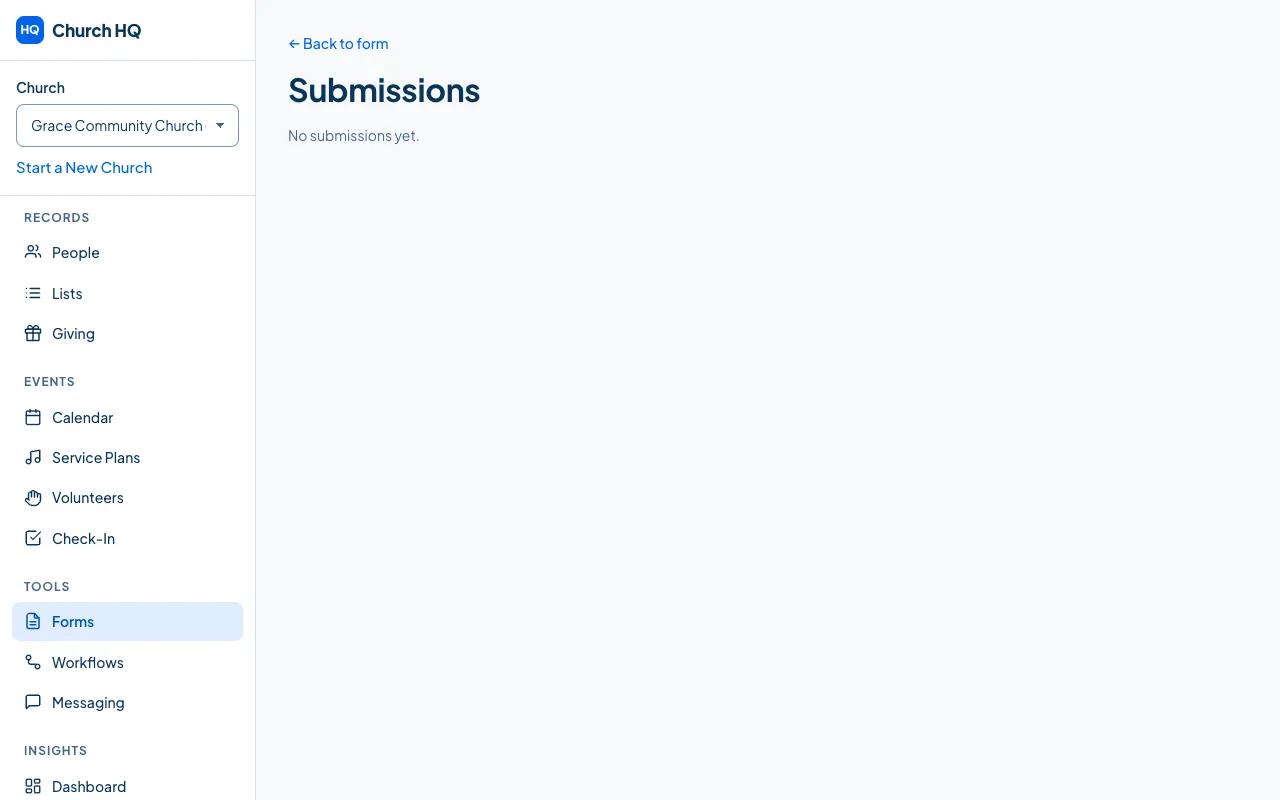
Choose Forms in the sidebar and open the form.
-
Open its submissions.
-
Read each one. Where the answers match someone your church already knows, Church HQ shows the match, and you decide whether to attach the submission to that person.
What Church HQ will not do for you
Section titled “What Church HQ will not do for you”It never overwrites a person’s email or phone with what a public form said. Anyone can type anything into a public form, so your team applies changes deliberately rather than a stranger editing your records.
What a person filling it in sees
Section titled “What a person filling it in sees”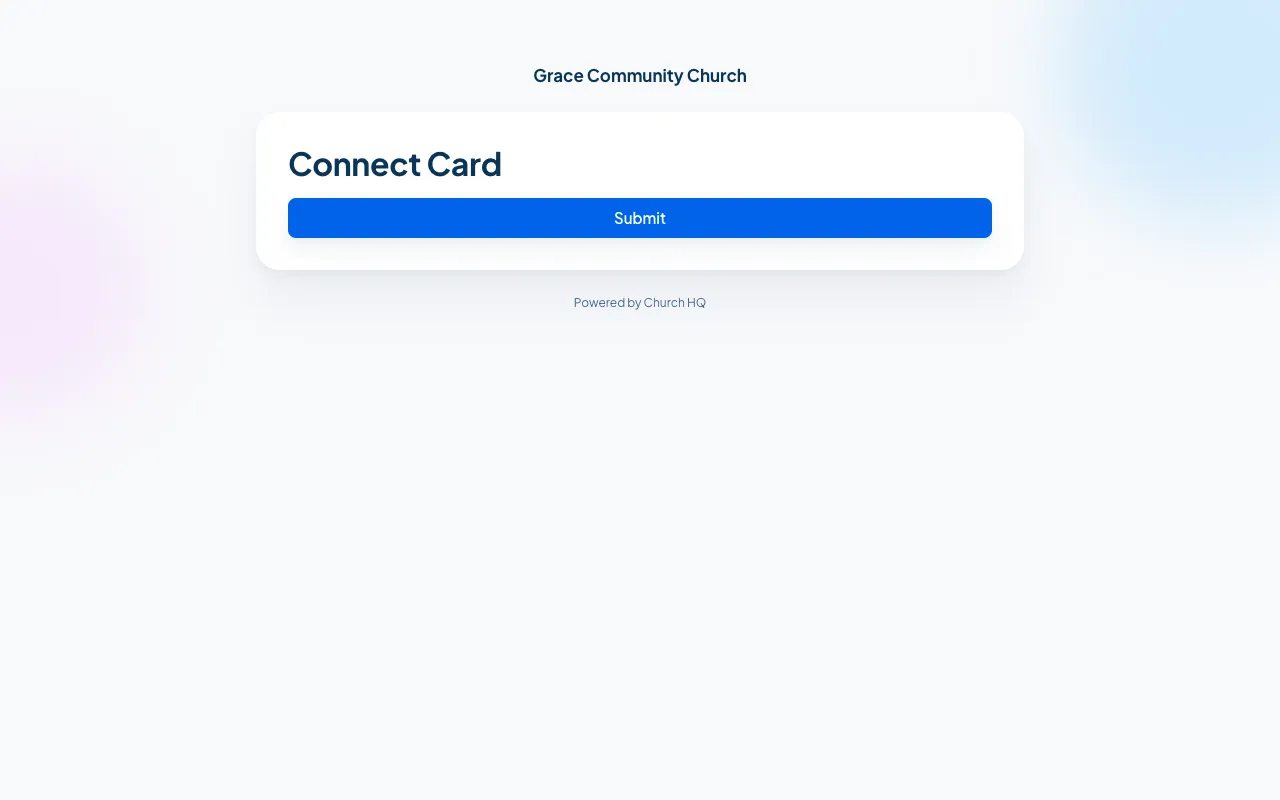
Your church’s name at the top, the questions, and nothing else. No sign-in.
Good to know
Section titled “Good to know”- Closed forms stop accepting answers and keep everything already sent.
- Deleting a question deletes its answers, and Church HQ warns you before it does.
- Submissions can start a workflow, which is how a connect card turns into a welcome email and a task. See Create a Workflow.
Still stuck? Contact the Help Desk at help@mychurchhq.com and tell us which guide you were following.