Team and Access
Give or Remove Access to Protected Information
Two kinds of information are hidden by default, even from staff:
- Giving: what people give, their donations, statements and funds.
- Child Safety Info: children’s records, including Kids Check-In, allergies and medical notes.
Owners and Administrators always see both. Standard and View Only teammates see them only when you say so. Someone without access does not see a blocked screen; the whole area is simply not in their sidebar.
-
In the sidebar, choose Administration, then Users and Roles.
-
Find the person’s row and look at the Protected Information column.
-
Tick Giving or Child Safety Info to give access. Clear the tick to take it away.
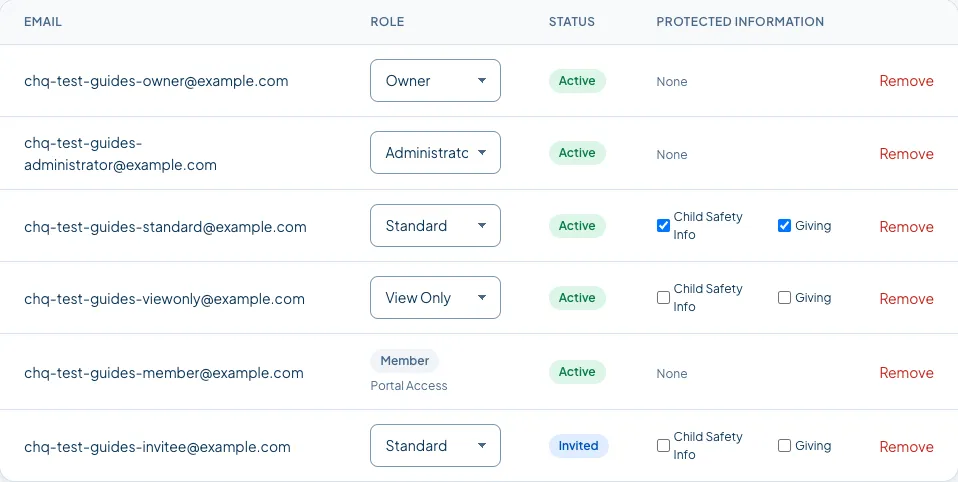
The change saves as soon as you tick it, and takes effect the next time that person loads a screen.
Who should have what
Section titled “Who should have what”- Giving: your bookkeeper, the person who enters the offering, and whoever produces giving statements. A children’s leader has no reason to see it.
- Child Safety Info: your children’s ministry leaders and whoever runs check-in. Nobody else.
Every change here is recorded in the audit log, with who made it.
Good to know
Section titled “Good to know”- Owners and Administrators cannot be ticked or unticked. Their role already includes both. If someone should not see giving, they should not be an Administrator.
- Background checks are protected in the same way and are part of an Enterprise plan.
- Prayer requests are not protected. Any staff member can see them, which is worth telling your team before you use a prayer request form.
Still stuck? Contact the Help Desk at help@mychurchhq.com and tell us which guide you were following.