Messaging
Send a Message
Messaging sends email and text messages to your church. Email goes through your church’s own provider and texts through your church’s own Twilio account, so messages come from your church.
Before you start
Section titled “Before you start”- For email: connect SendGrid or Mailchimp.
- For texts: connect Twilio.
-
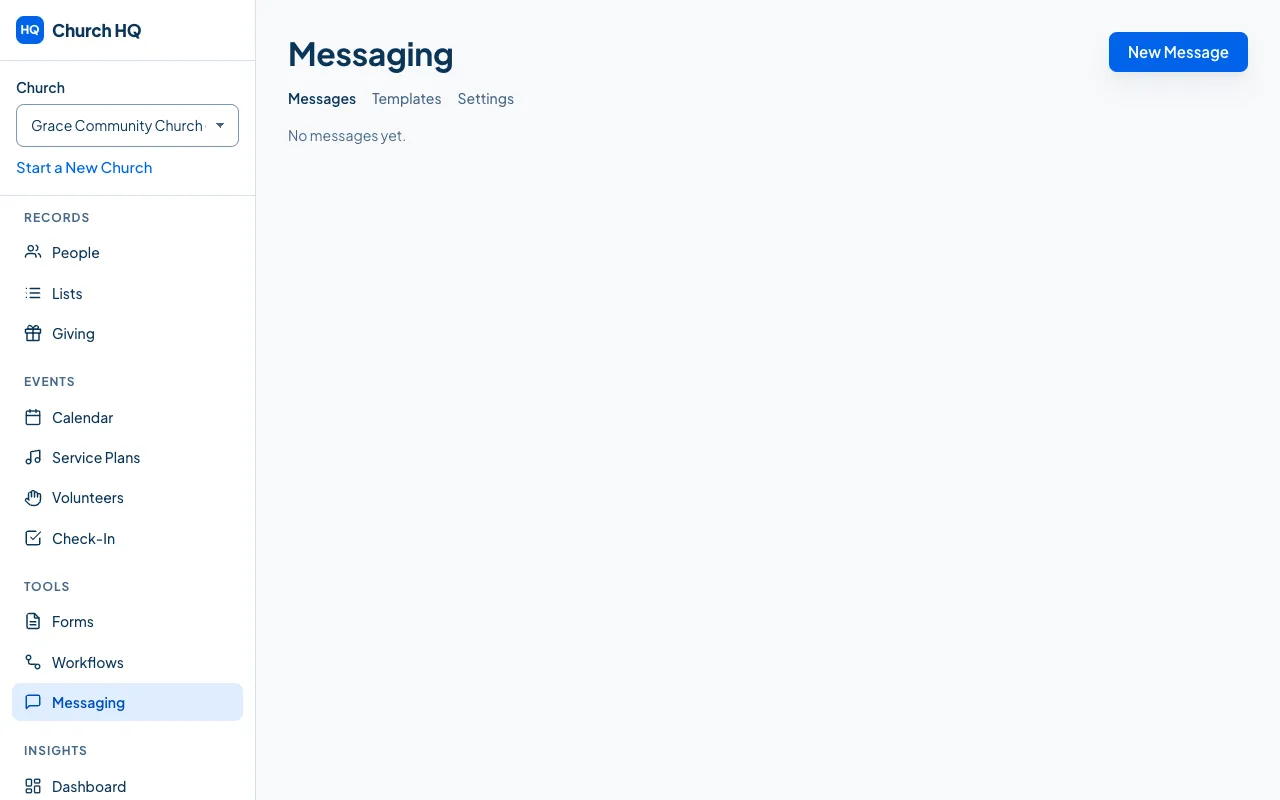
Choose Messaging in the sidebar, under TOOLS, then New message.
-
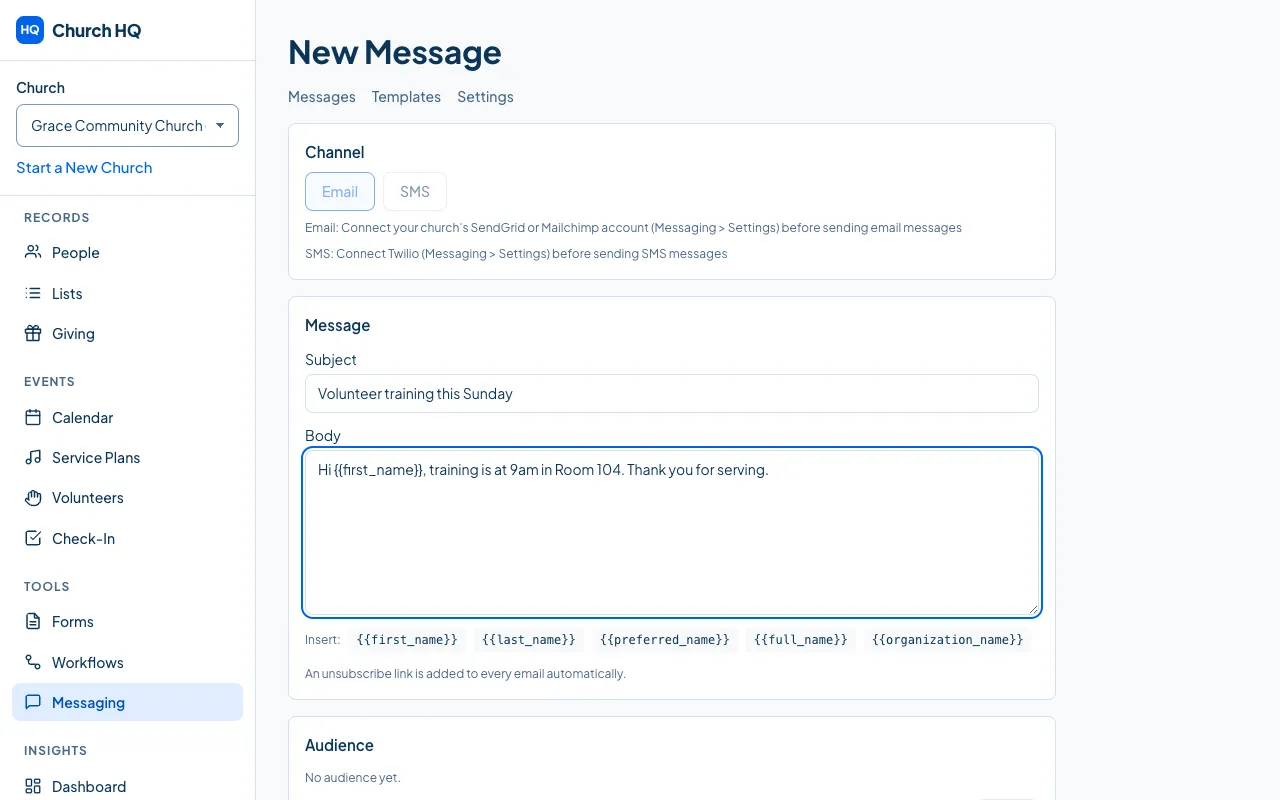
Under Channel, choose Email or SMS.
-
Write the message. Email has a Subject and a Body; a text has just the body.
-
Use the merge fields to make it personal:
{{first_name}},{{last_name}},{{preferred_name}},{{full_name}}and{{organization_name}}. Church HQ fills them in for each person as it sends. -
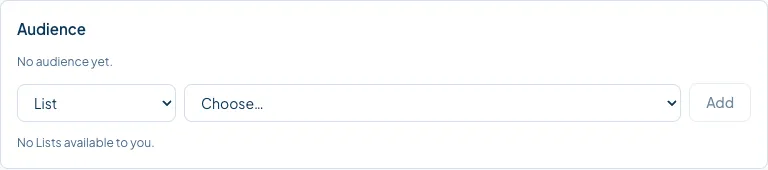
Choose the Audience: one person, a list, a volunteer team, or everyone who matches something.
-
Choose Preview Recipients to see exactly who will get it, and how many will not, and why.
-
Send it with Send Now, or pick a date and time under Or Schedule For and choose Schedule. Save Draft keeps it for later.
Who is left out, and why
Section titled “Who is left out, and why”The preview tells you before you send. People are skipped when they:
- have opted out of that channel, by replying STOP or unsubscribing
- have no email address, or no mobile number, on their record
A send with nobody eligible is stopped, with the counts, rather than quietly going nowhere.
Good to know
Section titled “Good to know”- Every email carries an unsubscribe link, and every text ends with how to stop.
- Account emails always get through: invitations, password resets and volunteer scheduling are not bulk messages and are never skipped.
- Messaging is part of Pro.
Still stuck? Contact the Help Desk at help@mychurchhq.com and tell us which guide you were following.