Calendar and Attendance
Add an Event
The calendar holds everything your church puts on: services, meetings, socials, outreach. Events matter beyond the calendar too, because attendance, volunteer scheduling and service plans all hang off them.
-
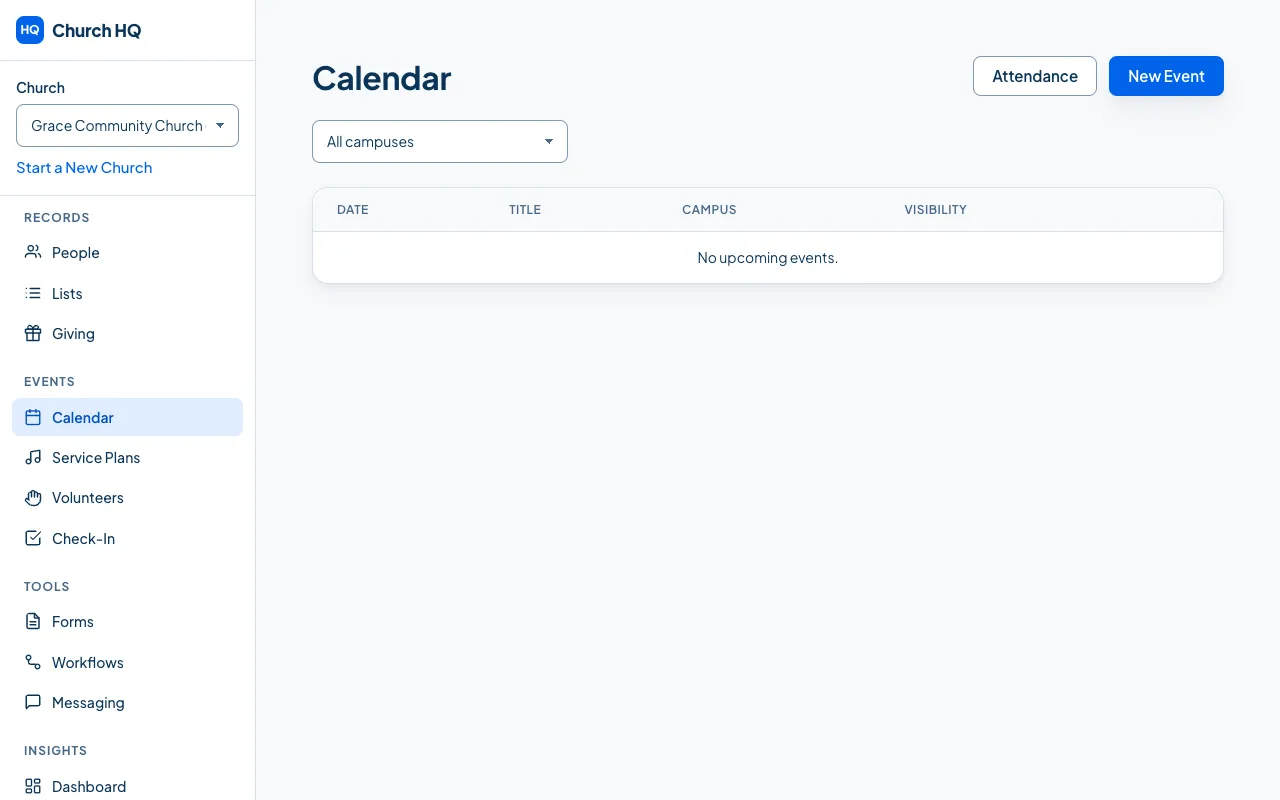
Choose Calendar in the sidebar, under EVENTS.
-
Choose New Event.
-
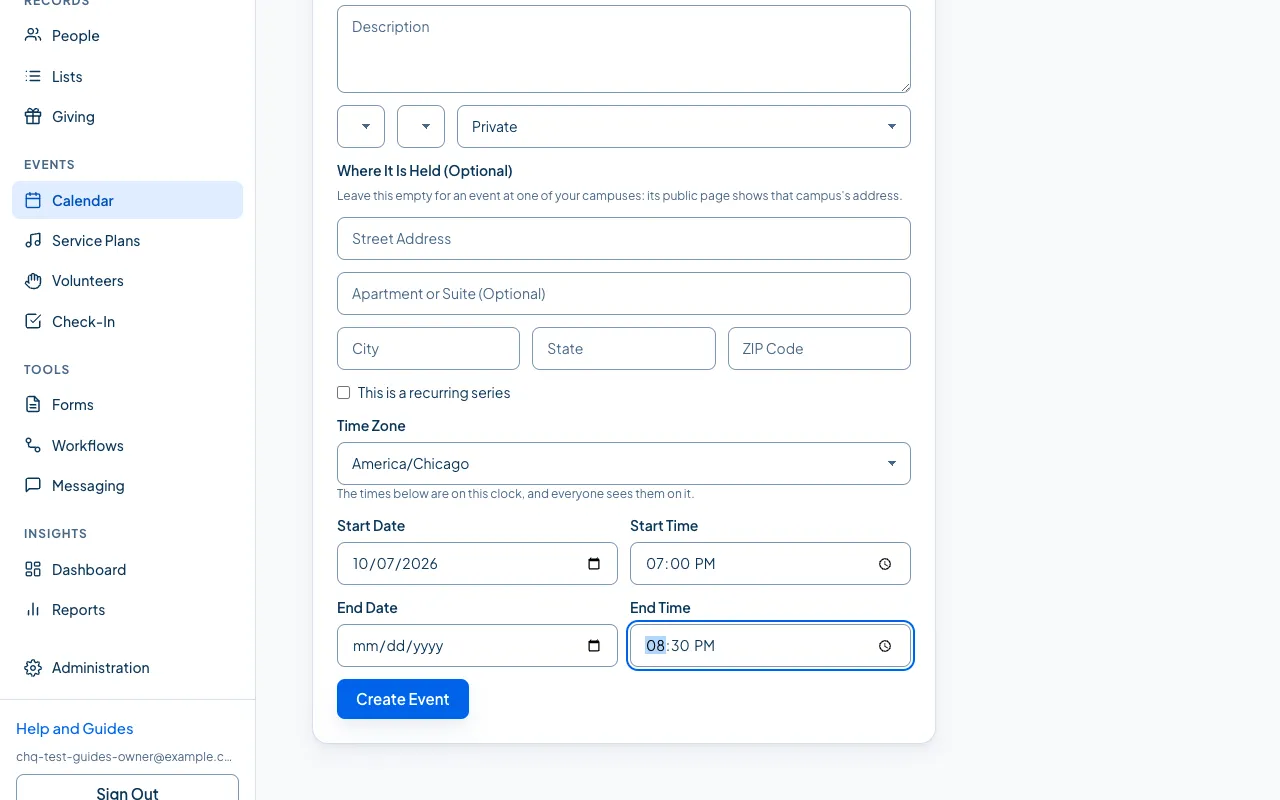
Fill in the event:
- Title, which is what people see
- Description, if there is more to say
- Campus, or All Campuses for something the whole church is invited to
- an event type, if your church uses them for reporting
- Visibility: Private for staff and volunteers, Public for something you will share a link to
- Where It Is Held (Optional): leave it empty for an event at one of your campuses; fill it in for a picnic in the park or a supper in the village hall
- Start Date and Start Time, then End Date and End Time
-
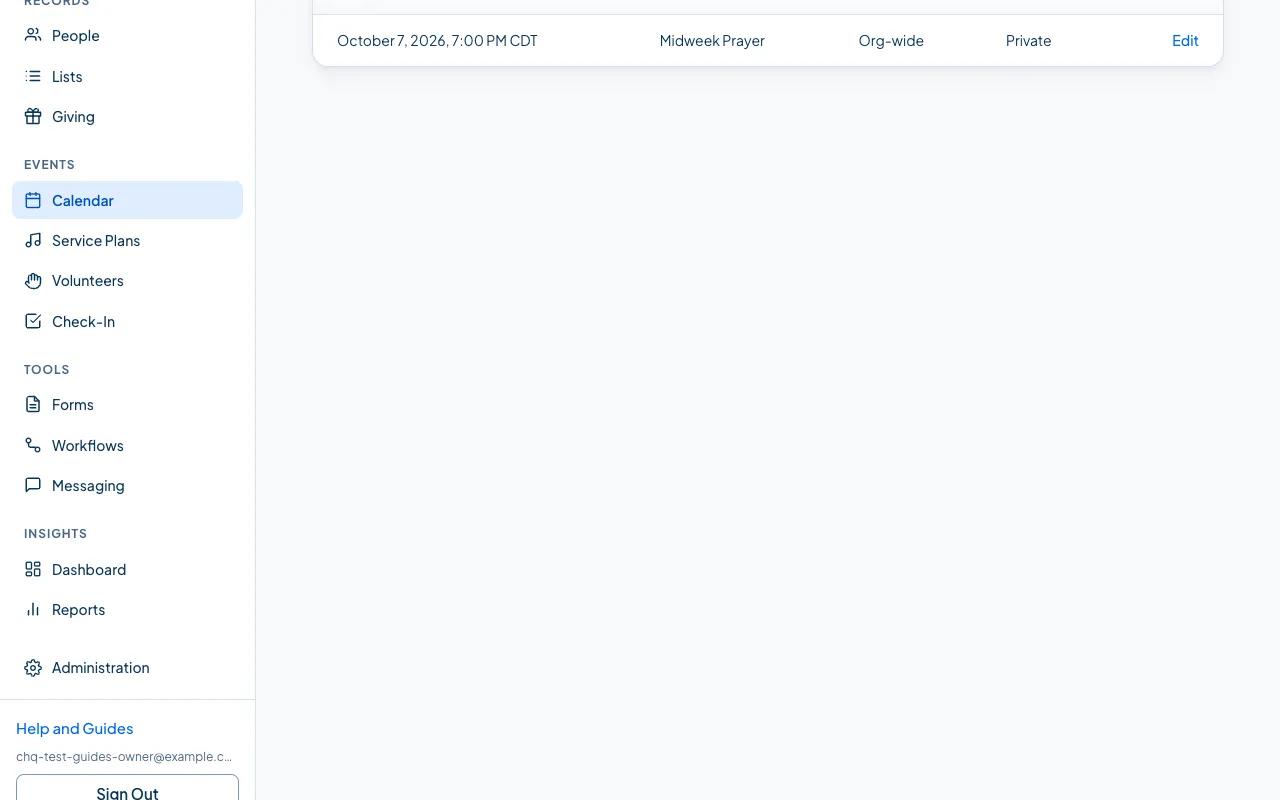
Choose Create Event.
Your event is on the calendar.
Where an event is held
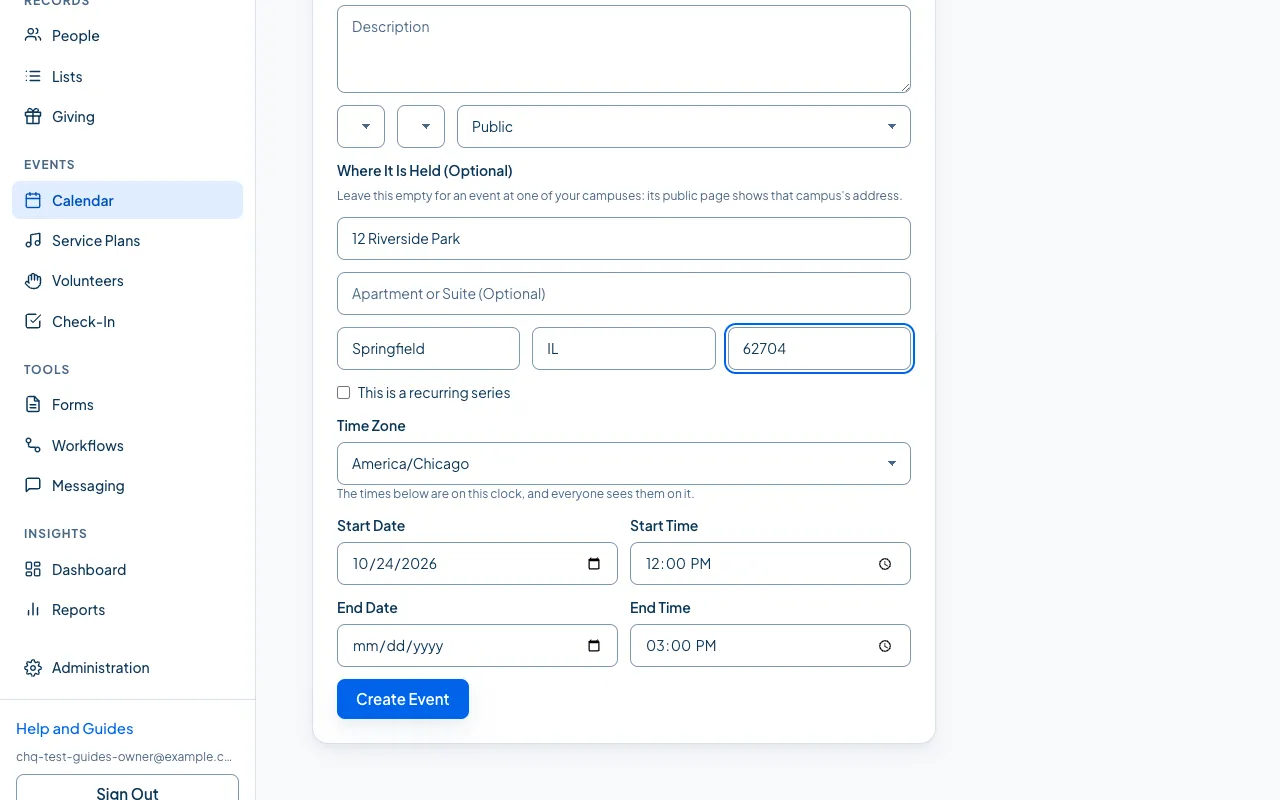
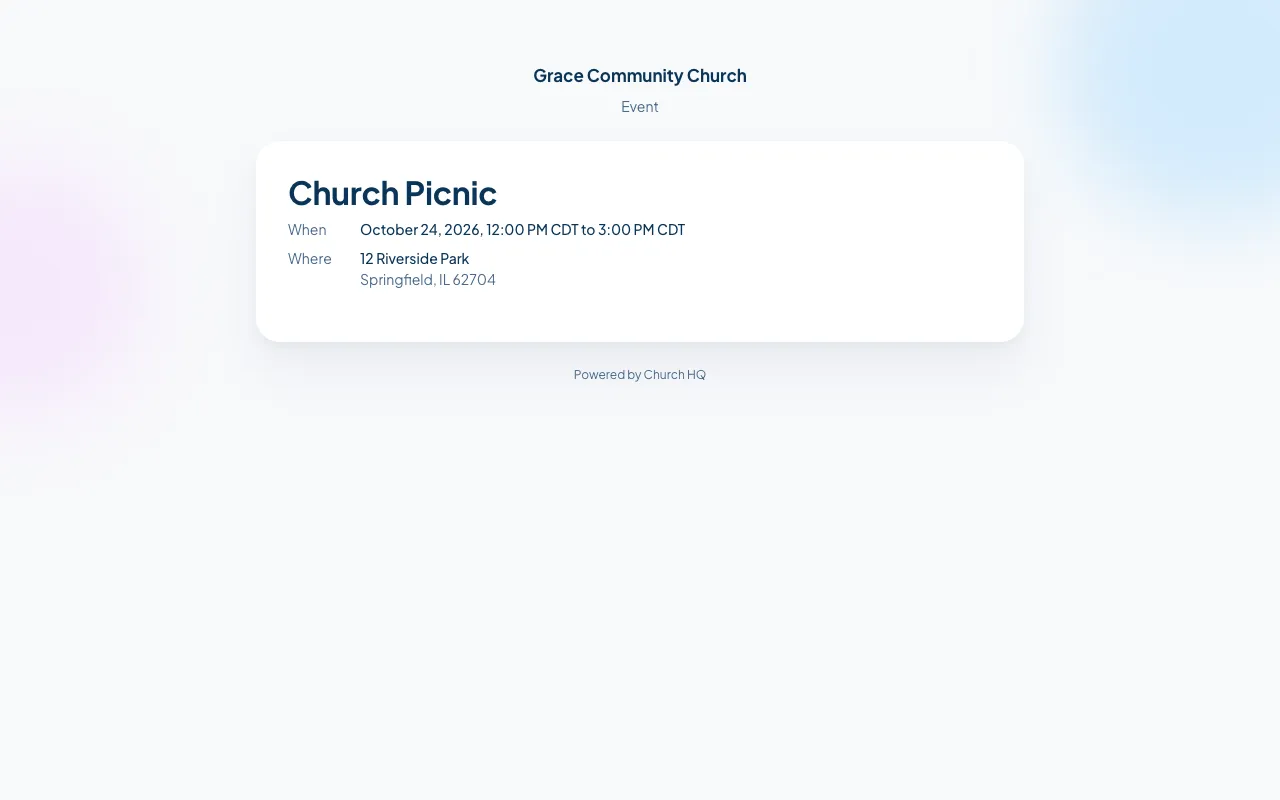
Section titled “Where an event is held”Most events are at one of your campuses, so there is nothing to type: the event’s public page shows that campus’s address by itself. Choose All Campuses and it uses your main campus.
When an event is somewhere else, fill in Where It Is Held (Optional) with the street address, city, state and ZIP code. That address is what the public page shows instead.
Good to know
Section titled “Good to know”- Title and start date are required. Everything else can wait.
- The end must come after the start. Church HQ refuses the event otherwise, which catches the usual typo of an evening event ending in the morning.
- Happens every week? Make it a series instead of typing it out over and over. See Create a Recurring Series.
- Public events can be shared with a link or a QR code. See Share a Public Event Page.
Still stuck? Contact the Help Desk at help@mychurchhq.com and tell us which guide you were following.