Getting Started
Sign Up or Sign In with Google or Facebook
If you would rather not keep another password, you can use your Google or Facebook account. Church HQ never sees your Google or Facebook password.
To sign up this way
Section titled “To sign up this way”-
Go to mychurchhq.com and choose Start Free Trial.
-
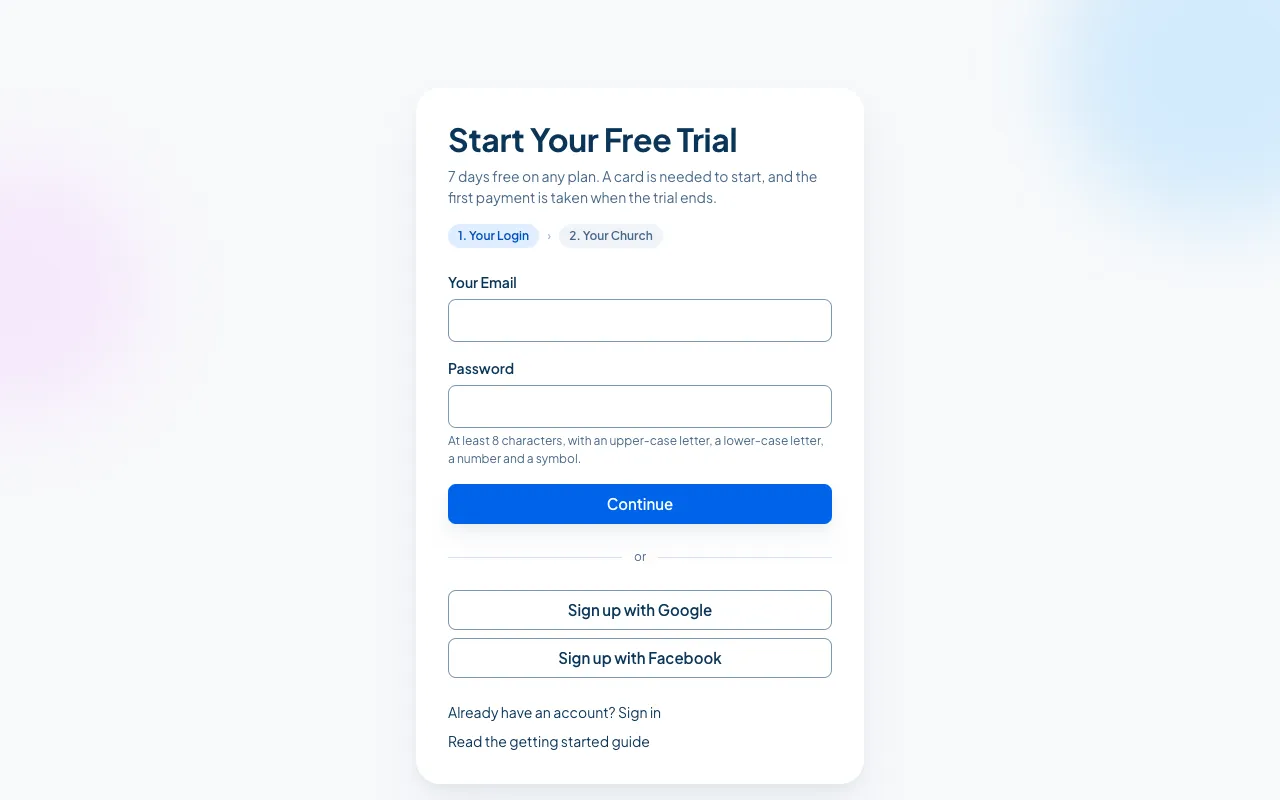
Under the email and password fields, choose Sign up with Google or Sign up with Facebook.
-
Google or Facebook asks you to pick an account and allow the sign-in. Once you do, you come back to Church HQ at step 2. Your Church, and you finish signing up the usual way. See Create Your Church Account from step 4 onwards.
To sign in this way later
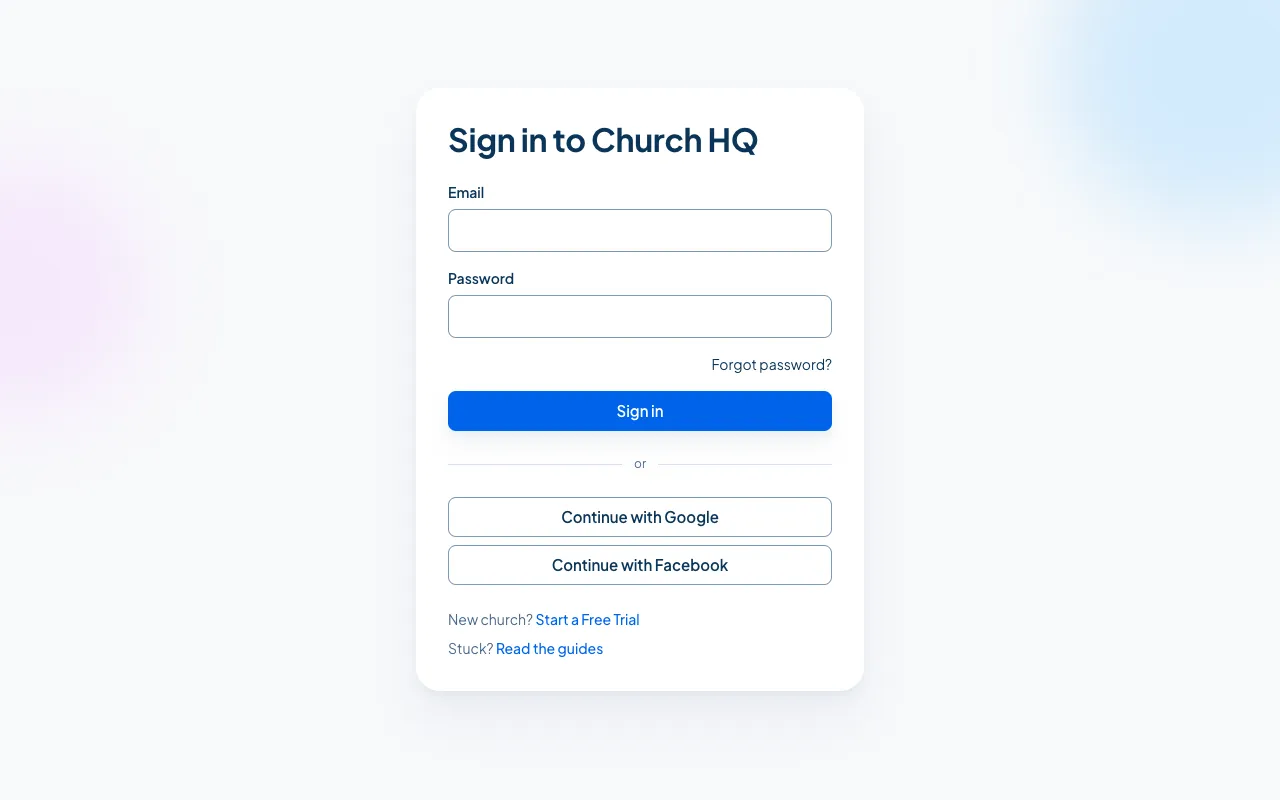
Section titled “To sign in this way later”On the sign-in screen, choose Continue with Google or Continue with Facebook. Use the same account you signed up with.
Things worth knowing
Section titled “Things worth knowing”- Use the same method every time. If you signed up with Google, sign in with Google. Your church is attached to the login, not to the method you wish you had used.
- Owners still confirm each sign-in. Signing in with Google counts as one step, so Owners also set up two-step sign-in.
- Your church invited an address. If your church invited
you@yourchurch.org, sign in with the Google or Facebook account that uses that same address, or the invitation will not match. - Microsoft and Apple are not available yet.
Still stuck? Contact the Help Desk at help@mychurchhq.com and tell us which guide you were following.