Getting Started
Set Up Two-Step Sign-In
Church HQ asks every Owner to confirm each sign-in with a 6 digit code from an app on their phone. An Owner can see everything a church holds, including giving and children’s records, so a password on its own is not enough.
You do this once. After that, signing in takes one extra step.
Before you start
Section titled “Before you start”Install an authenticator app on your phone, if you do not have one. Any of these work:
- Google Authenticator
- Microsoft Authenticator
- 1Password
- Authy
1. Sign in
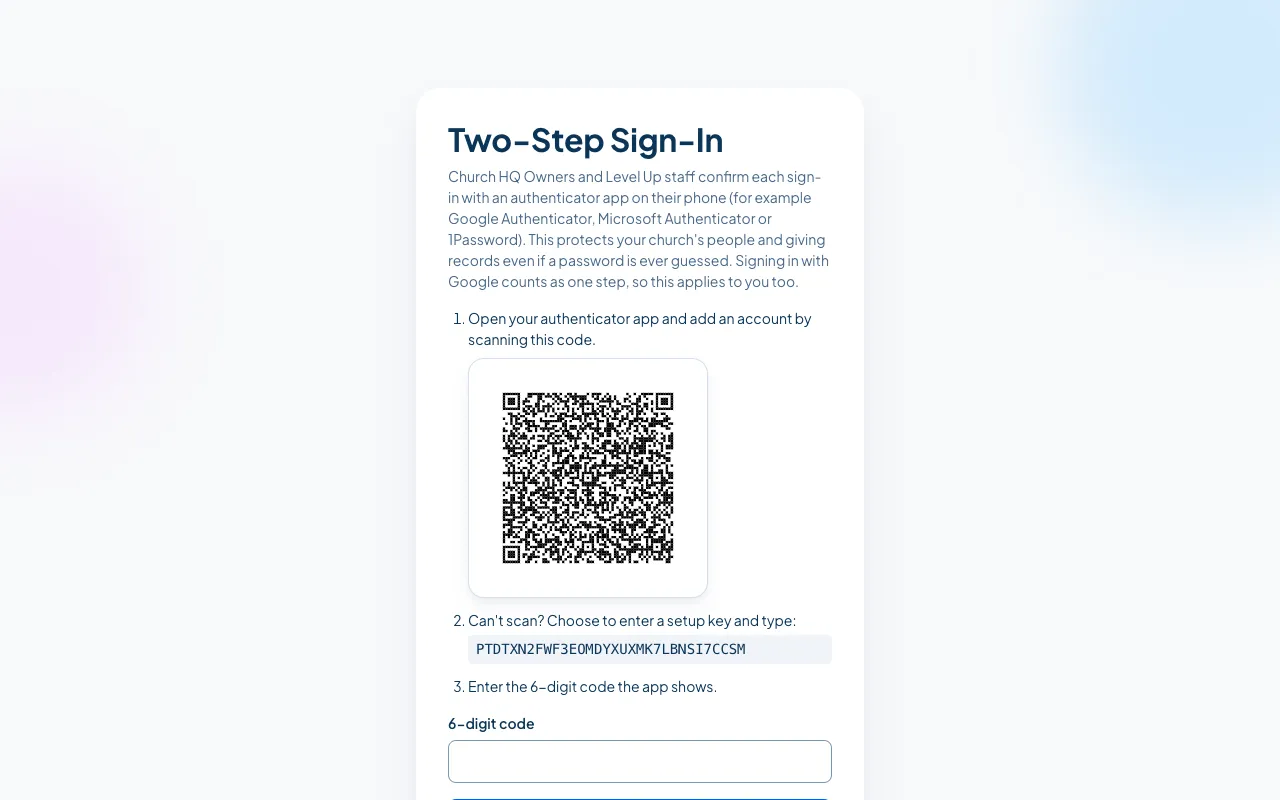
Section titled “1. Sign in”Sign in as usual. Church HQ takes you straight to Two-Step Sign-In and shows a QR code.
2. Scan the code with your authenticator app
Section titled “2. Scan the code with your authenticator app”Open your authenticator app, choose to add an account, and scan the square code on the screen.
If your phone cannot scan it, choose to enter a setup key instead, and type the line of letters and numbers shown under the code.
3. Enter the 6 digit code
Section titled “3. Enter the 6 digit code”Your app now shows a 6 digit code for Church HQ that changes every 30 seconds. Type the code in 6-digit code and choose Confirm.
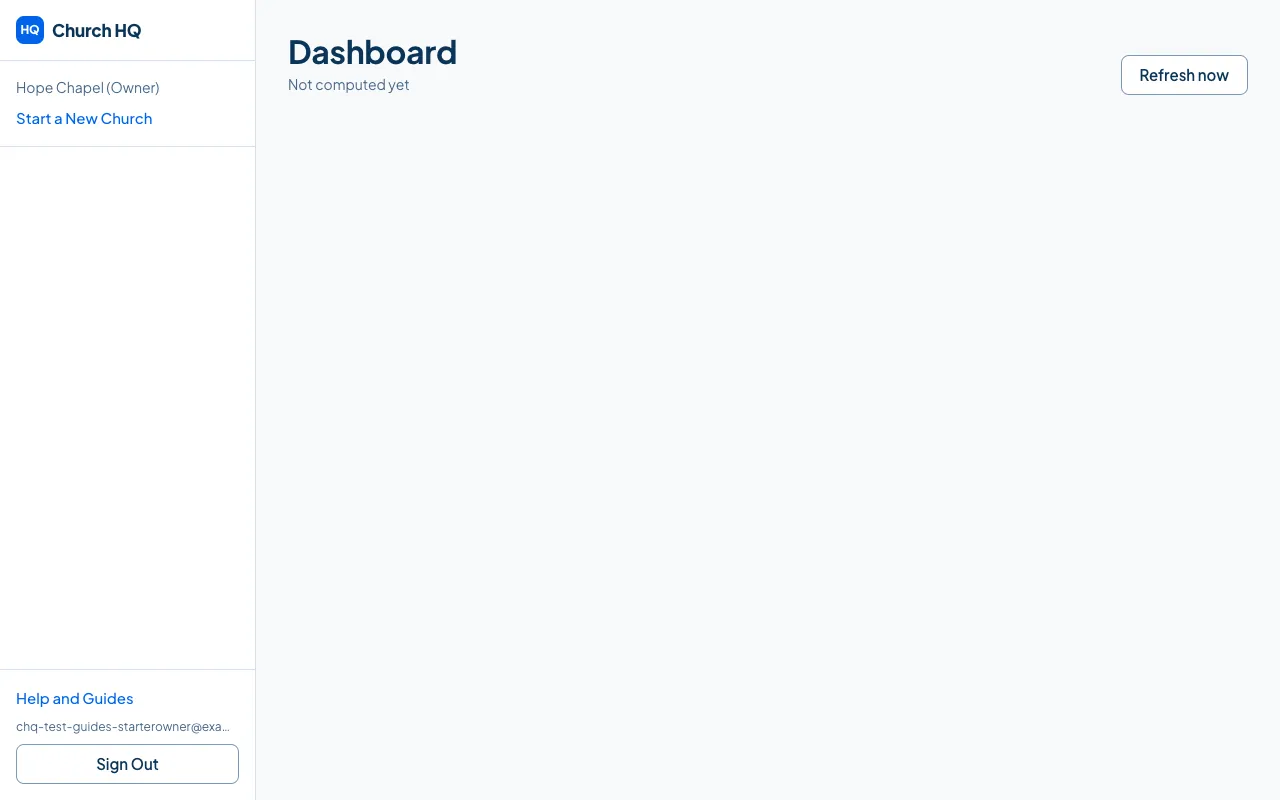
That is it. From now on, Church HQ asks for a code each time you sign in. See Sign In with Your Two-Step Code.
If something goes wrong
Section titled “If something goes wrong”- The code is refused. Codes last about 30 seconds. Wait for the next one and try again. If it keeps failing, check that your phone’s clock is set automatically.
- You lost your phone. Contact the Help Desk at help@mychurchhq.com. After confirming who you are, we can remove the old authenticator so you can set up a new one.
- Signing in with Google. That still counts as one step, so Owners set this up too.
Still stuck? Contact the Help Desk at help@mychurchhq.com and tell us which guide you were following.