Getting Started
Sign In and Reset Your Password
Everyone who uses Church HQ, staff and congregation alike, signs in at the same place.
1. Go to the sign-in screen
Section titled “1. Go to the sign-in screen”Open mychurchhq.com and choose Sign In at the top right.
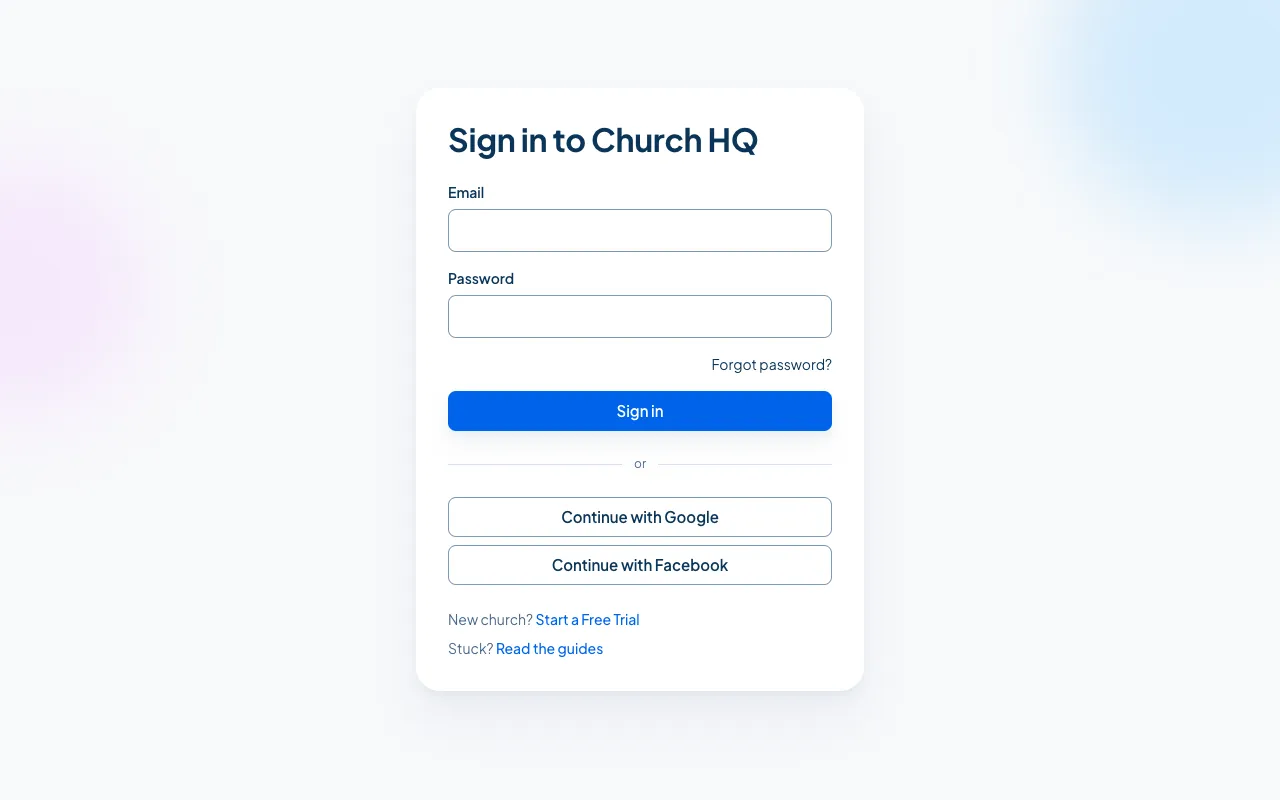
2. Enter your email and password
Section titled “2. Enter your email and password”Type the address your invitation was sent to, then your password, and choose Sign in.
If you set your account up with Google or Facebook, choose Continue with Google or Continue with Facebook instead, and use the same account you signed up with.
3. Confirm your sign-in, if your church asks for it
Section titled “3. Confirm your sign-in, if your church asks for it”Owners confirm every sign-in with a code from an authenticator app. See Sign In with Your Two-Step Code.
4. Pick your church, if you belong to more than one
Section titled “4. Pick your church, if you belong to more than one”If you help at more than one church, Church HQ asks which one you are working in. See Choose and Switch Churches.
If you forget your password
Section titled “If you forget your password”-
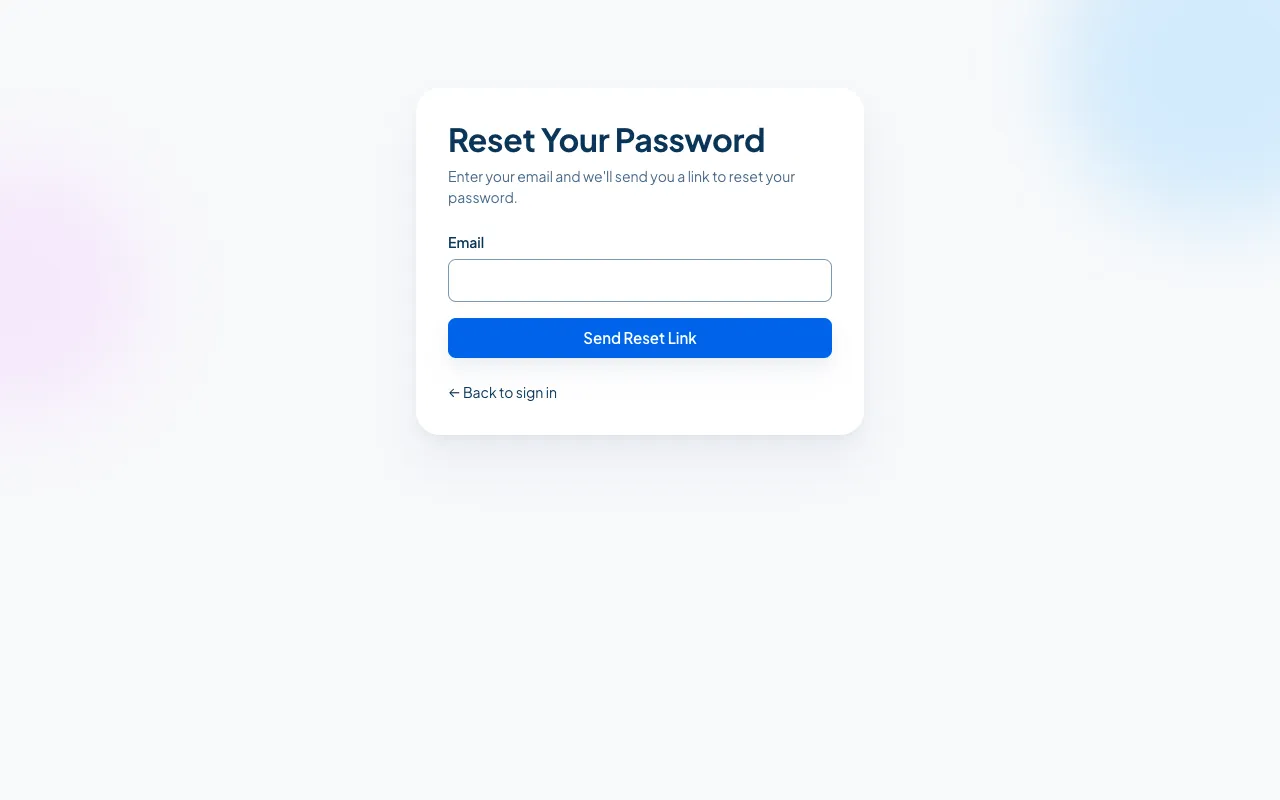
On the sign-in screen, choose Forgot password?
-
Type your email address and choose Send Reset Link.
-
Open the email and follow the link, then set a new password. It needs at least 8 characters, with an upper-case letter, a lower-case letter, a number and a symbol.
The link is good for a short time. If it has expired, ask for another one.
If you cannot get in
Section titled “If you cannot get in”- Nothing arrives by email. Check your spam folder, and check that you typed the address your church invited. If your church invited a different address, ask an Owner or Administrator to invite the right one.
- You use Google or Facebook and it will not let you in. Make sure you are signed in to the right Google or Facebook account in that browser, then try again.
- Two-step sign-in and a lost phone. Contact the Help Desk. After confirming who you are, we can remove the old authenticator so you can set up a new one.
Still stuck? Contact the Help Desk at help@mychurchhq.com and tell us which guide you were following.