Church Settings
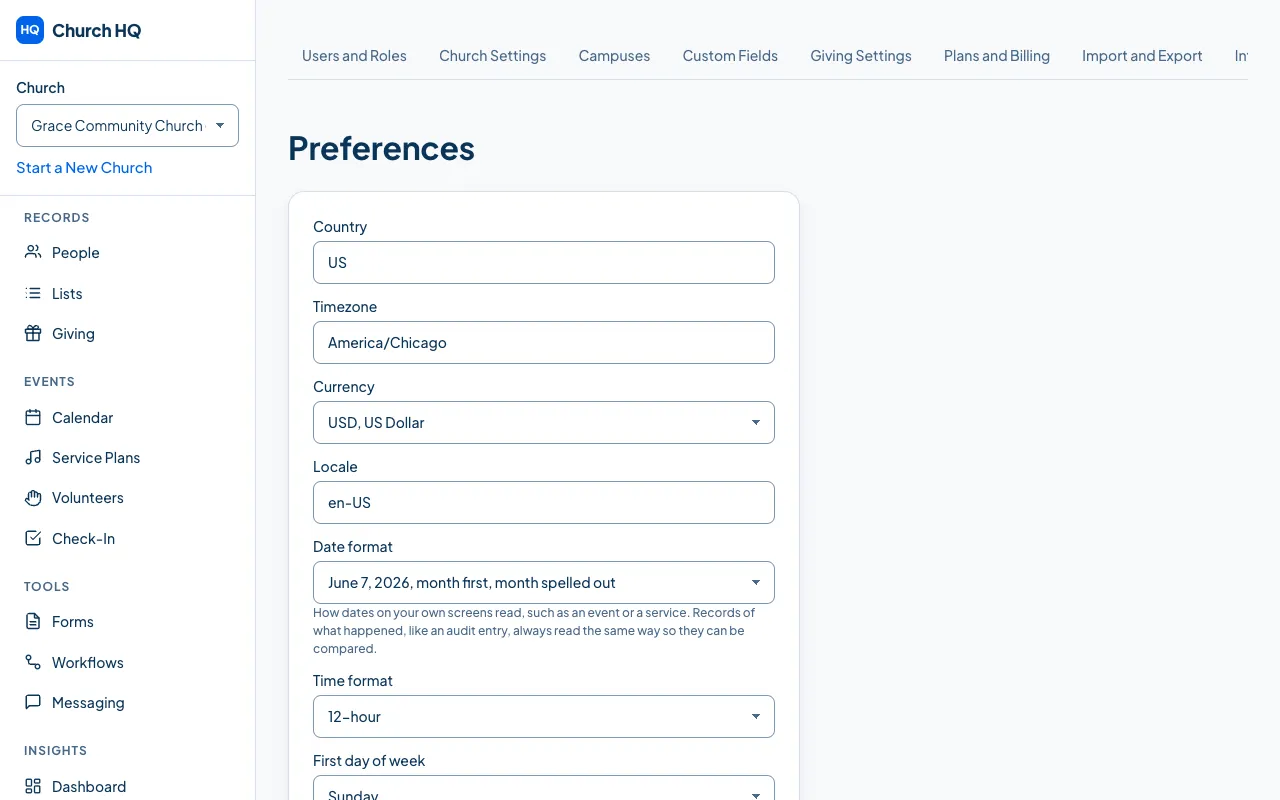
Set Your Timezone, Currency and Date Formats
These settings decide how Church HQ shows every date, time and amount, for everyone at your church. They are set from your answers at signup, so most churches never touch them.
- In the sidebar, choose Administration, then the Preferences tab.
- Change what you need:
- Country
- Timezone, for example
America/Chicago. This is the one that matters most: your events, check-in times, attendance and giving statements are all shown in it. - Currency, chosen from a list, for example
USD, US Dollar. - Locale, for example
en-US. - Date format, chosen from five, each shown as an example:
June 7, 2026,7 June 2026,06/07/2026,07/06/2026or2026-06-07. - Time format: 12-hour or 24-hour.
- First day of week: Sunday or Monday.
- Choose Save Preferences.
Good to know
Section titled “Good to know”- A campus can have its own timezone. If your church has campuses in different timezones, set each one under Campuses.
- Changing the timezone does not move anything. Existing events keep the moment they were set for; they are simply shown in the new timezone.
- Giving statements use the church’s timezone to decide which year a donation falls in, which matters at the turn of the year.
- Your currency settles once you have taken a gift. Until then you can change it freely. After the first donation is recorded the list is locked, so totals never end up adding two currencies together. If it is wrong by then, get in touch and we will sort it out.
- Records of what happened always read the same way. The date format changes your own screens, such as an event or a service. An audit log entry keeps one fixed format so entries can be compared, whoever is reading them.
- First day of week decides where a week begins everywhere your reports and your Dashboard group by week. A church that gathers on Sunday usually wants Sunday first, so a service counts at the start of its week rather than at the end. See Read the Dashboard.
Still stuck? Contact the Help Desk at help@mychurchhq.com and tell us which guide you were following.