Messaging
Connect SendGrid or Mailchimp for Email
Email you send from Messaging (newsletters, follow-ups, announcements and workflow emails) goes out through your church’s own email account, just as text messages go through your church’s own Twilio account. Church HQ never sends your church’s messages from its own account.
That keeps your messages coming from your church’s own address and domain, gives your church its own sending reputation and delivery reports, and means you only pay your provider for what you send.
Church HQ still sends its own account emails for you, with nothing to connect: invitations, password resets, email confirmations and volunteer scheduling requests.
Connect one provider. Until you do, email messages cannot be sent, though text messages are unaffected once Twilio is connected. If you disconnect it, email messages stop until you connect one again, and past messages keep a record of which provider sent them.
Choose one:
- SendGrid, the simpler of the two to set up.
- Mailchimp Transactional, a paid add-on to a Mailchimp Standard or higher plan.
SendGrid
Section titled “SendGrid”1. Create a SendGrid account
Section titled “1. Create a SendGrid account”- Sign up at signup.sendgrid.com with an email address your church controls for the long term.
- Answer SendGrid’s account setup questions, and turn on two-factor authentication when asked.
- Pick a plan that fits how much email you send. See SendGrid pricing.
2. Prove you own the address you will send from
Section titled “2. Prove you own the address you will send from”SendGrid refuses to send from any address it has not verified. In SendGrid, go to Settings, then Sender Authentication, and do one of these:
- Single Sender Verification, the quickest. Enter the one address you will send from, then follow the link SendGrid emails to it. Done in minutes.
- Domain Authentication, which is better. It lets you send from any address at your domain and improves delivery. SendGrid gives you a few DNS records to add wherever your domain is managed; whoever set up your church website or email can usually do this.
SendGrid’s sender verification guide and domain authentication guide show the screens.
3. Create an API key
Section titled “3. Create an API key”- In SendGrid, go to Settings, then API Keys, and choose Add API Key.
- Name it something like
Church HQ. - Choose Restricted Access and set Mail Send to Full Access. If you also give Sender Authentication read access, Church HQ can confirm your sender is verified when you connect; without it, Church HQ connects anyway and SendGrid checks the sender when you send.
- Choose Create & View and copy the key straight away. It starts with
SG.and SendGrid shows it only once.
4. Connect it to Church HQ
Section titled “4. Connect it to Church HQ”An Owner or Administrator chooses Messaging, then Settings, and finds Email provider (optional).
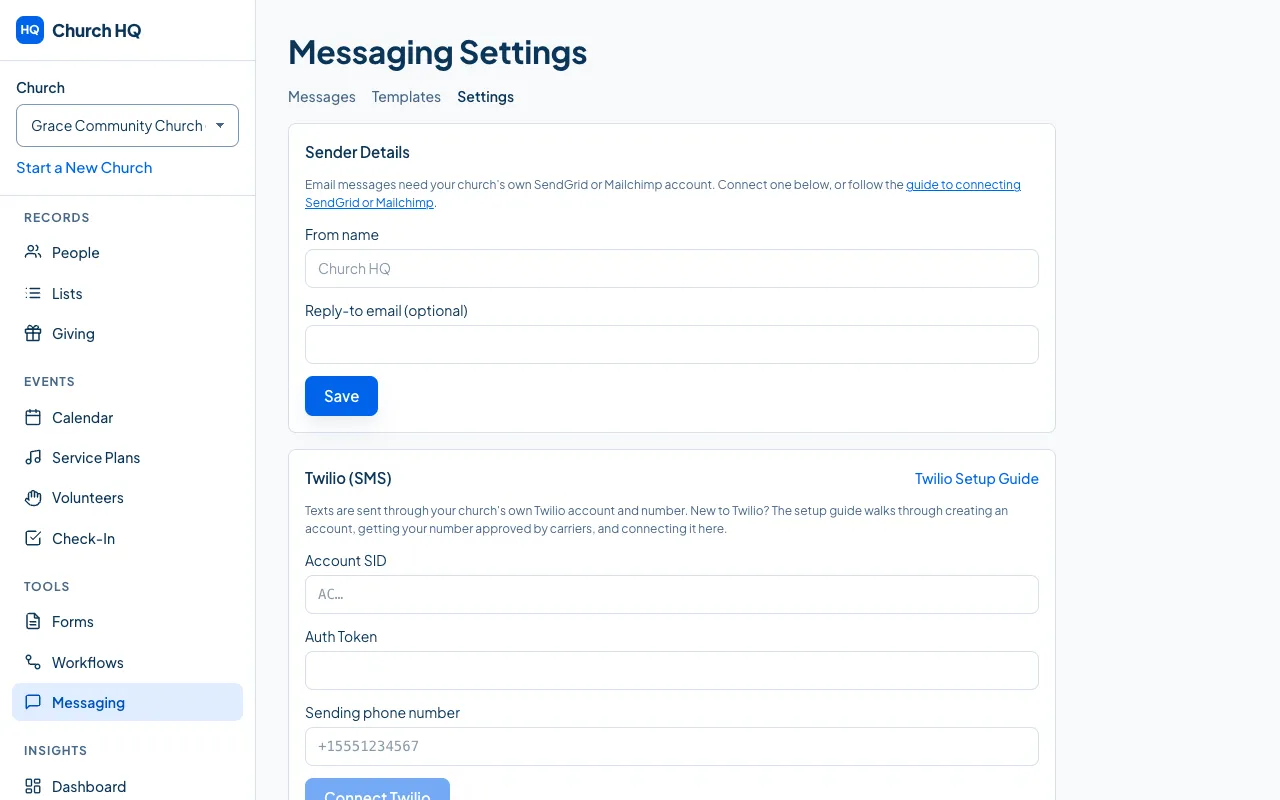
Choose SendGrid, paste the key, enter the address you verified as the “Send from” address, and choose Connect. Then send yourself a test email from Messaging, New message.
Mailchimp Transactional
Section titled “Mailchimp Transactional”1. Add Mailchimp Transactional to your Mailchimp account
Section titled “1. Add Mailchimp Transactional to your Mailchimp account”- Your Mailchimp account must be on the Standard plan or higher.
- An Owner or Admin of the Mailchimp account adds Transactional by buying email blocks. Each block is 25,000 emails, renewed monthly. See Mailchimp’s add Transactional guide.
- From Mailchimp’s Transactional page, choose Launch App to open the Transactional dashboard.
Without bought blocks the account stays in demo mode, where it only delivers to addresses at your own
verified domain. Emails to anyone else fail with recipient-domain-mismatch.
2. Add and verify your sending domain
Section titled “2. Add and verify your sending domain”- In the Transactional dashboard, go to Settings, Domains, Sending Domains, and add your church’s domain.
- Verify that you own it. Mailchimp either emails an address at that domain or gives you a DNS record.
- Add the DKIM and SPF records it shows you, and DMARC if it asks, then test them until they show as valid. Mailchimp’s authentication guide has the detail.
Church HQ will not connect until the domain of your “Send from” address shows as verified here.
3. Create an API key
Section titled “3. Create an API key”- In the Transactional dashboard, go to Settings and find the API Keys section.
- Choose Add API Key, describe it as
Church HQ, and copy it straight away.
A Mailchimp Transactional key starts with md-. A key ending in something like -us3 is a regular
Mailchimp key and will be refused.
4. Connect it to Church HQ
Section titled “4. Connect it to Church HQ”An Owner or Administrator chooses Messaging, then Settings, and finds Email provider (optional). Choose Mailchimp Transactional (Mandrill), paste the key, and enter a “Send from” address at the domain you verified. Choose Connect, then send yourself a test email.
If something goes wrong
Section titled “If something goes wrong”Connection problems appear on Messaging, Settings when you choose Connect. Sending problems appear on each message’s delivery list.
| What you see | What to do |
|---|---|
| SendGrid rejected that API key | The key was mistyped, deleted or copied incompletely. Create a new one. |
| That SendGrid API key does not have Mail Send permission | Edit the key in SendGrid and give Mail Send full access, or create a new key. |
| Not a verified sender or authenticated domain | Finish Single Sender Verification or Domain Authentication for that exact address. |
| Mailchimp Transactional rejected that API key | It is probably a regular Mailchimp key. Create one inside the Transactional dashboard. |
| Not a verified sending domain | Add the domain and finish its DNS records, or send from a domain that is already verified. |
recipient-domain-mismatch |
The Mailchimp Transactional account is in demo mode. Buy email blocks. |
| Disconnect SendGrid before connecting Mailchimp, or the reverse | Only one email provider can be connected at a time. |
| No valid email address on file | That person has no email address in Church HQ, so nothing was attempted. |
| Emails land in spam | Set up Domain Authentication (SendGrid) or DKIM and SPF (Mailchimp), and send from an address at that domain. |
Every email Church HQ sends includes an unsubscribe link, whichever provider sends it. Someone who unsubscribes is skipped in all future bulk email, while account and scheduling notifications still reach them.
Still stuck? Contact the Help Desk at help@mychurchhq.com and tell us which guide you were following.