People and Households
Add a Person
People is the heart of Church HQ. Everything else, giving, serving, check-in and attendance, hangs off a person’s record.
1. Open People
Section titled “1. Open People”Choose People in the sidebar, under RECORDS.
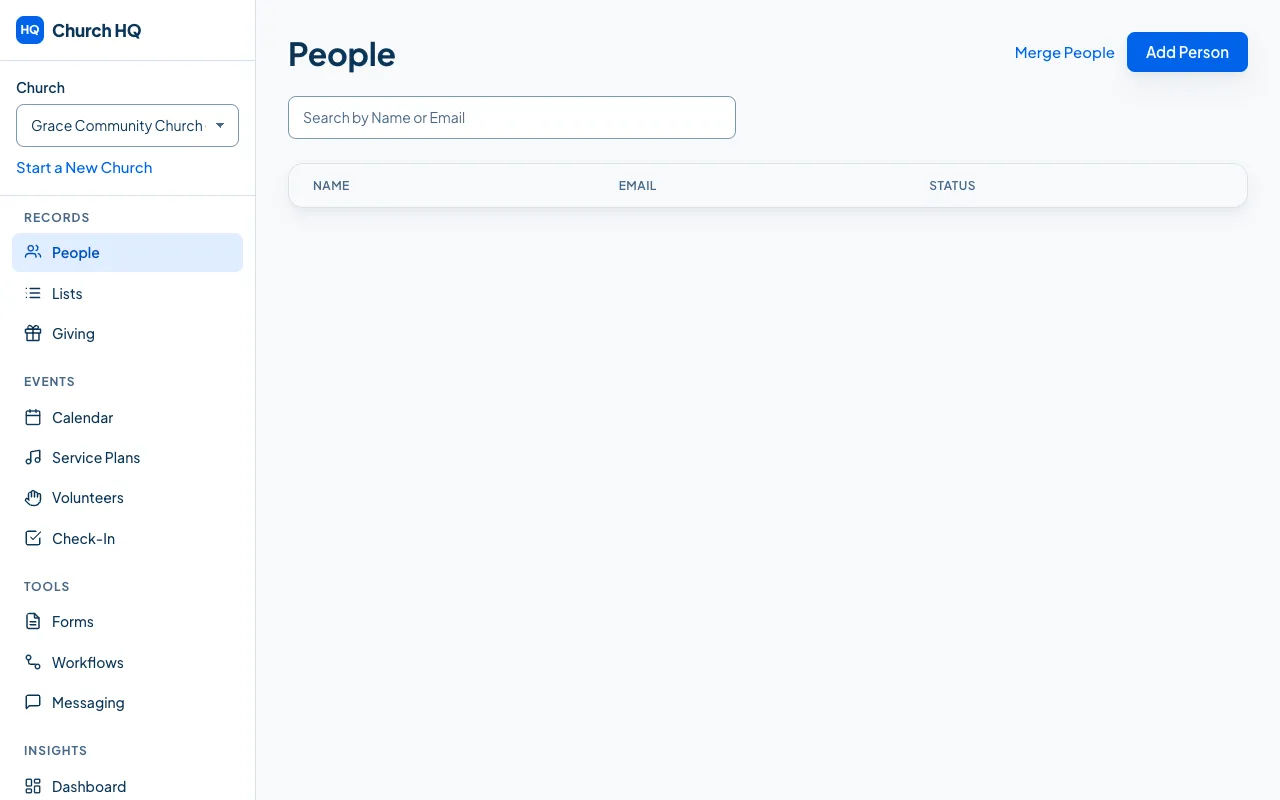
2. Choose Add Person
Section titled “2. Choose Add Person”The form opens above the list.
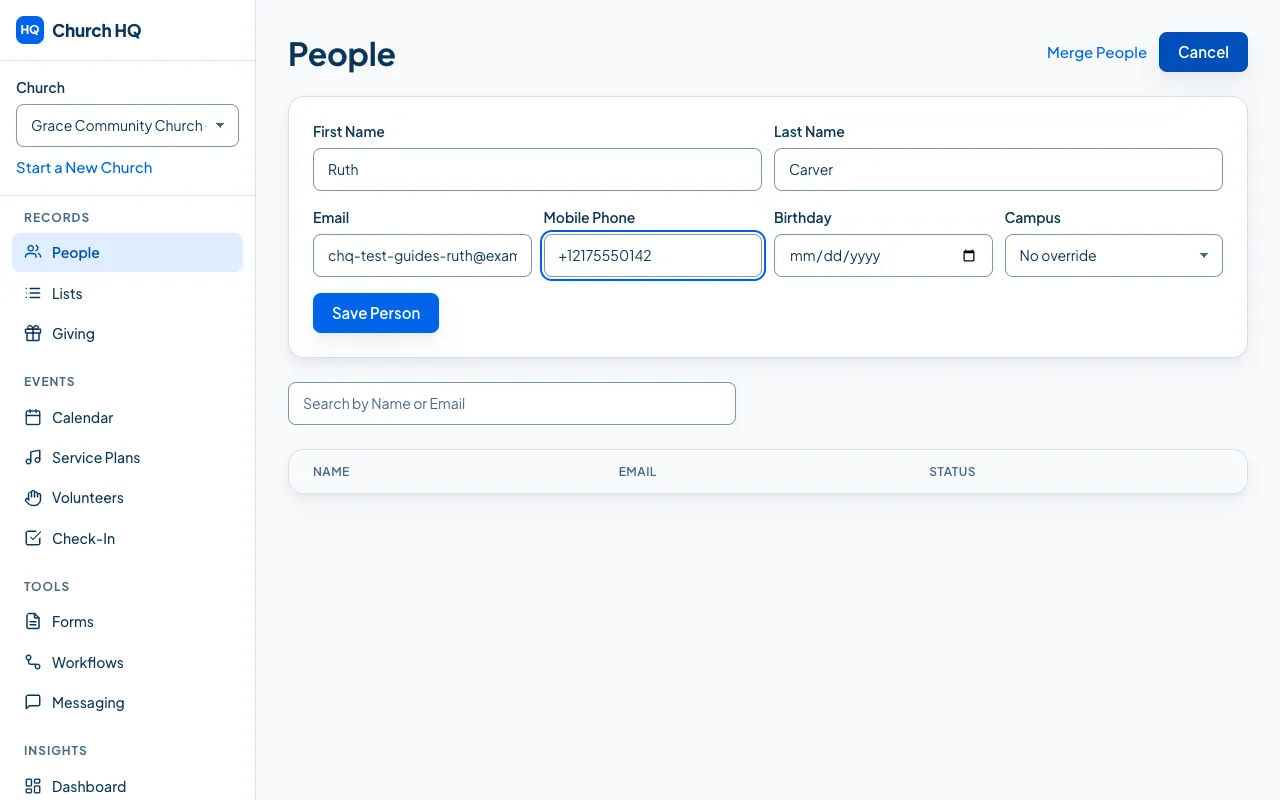
3. Fill in what you know
Section titled “3. Fill in what you know”Only the name is required. Everything else can come later.
- First Name and Last Name
- Email, which is also how this person signs in to the Member Portal later
- Mobile Phone, in international format, for example
+12175550142 - Birthday, which drives age based features such as classroom suggestions in Kids Check-In
- Campus, if your church has more than one and this person belongs to a particular one
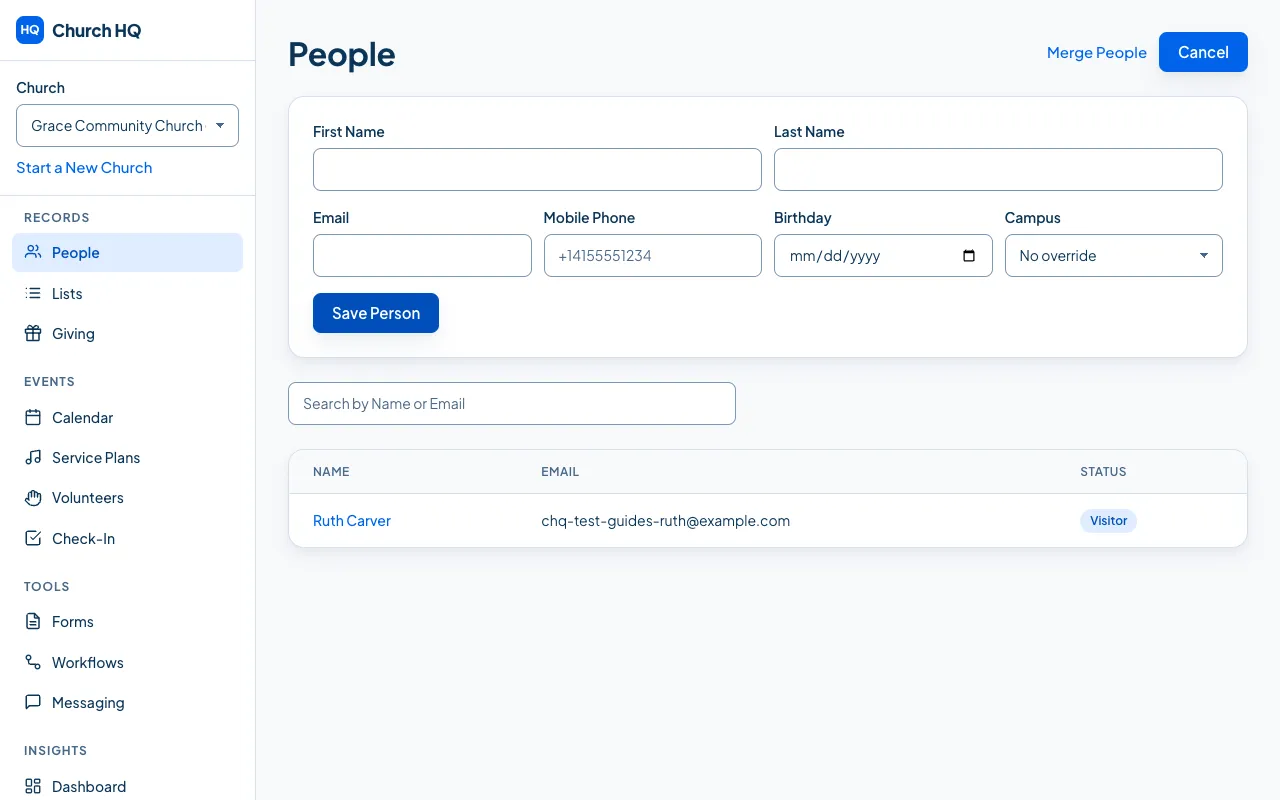
4. Choose Save Person
Section titled “4. Choose Save Person”They appear in the list straight away.
If someone with the same details is already in your records, Church HQ stops and says so instead of saving. See Find and Merge Duplicates.
What is on a person’s record
Section titled “What is on a person’s record”Open anyone from the list to see their record.
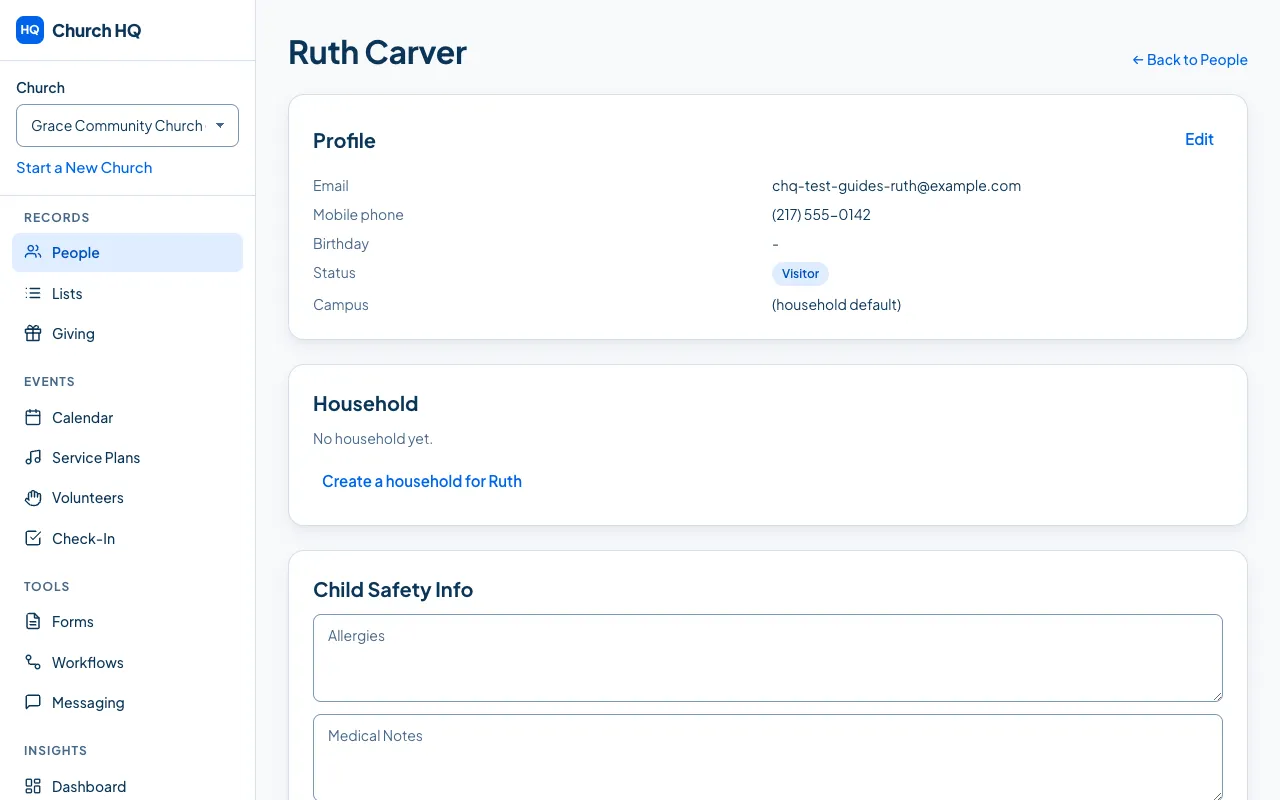
- Profile: name, contact details, birthday, campus and status
- Household: their family. See Create a Household
- Tags: your own labels, such as
New HereorChoir - Emergency Contacts and Relationships
- Notes: staff notes about this person
- Child Safety Info: allergies, medical notes and pickup authorizations, shown only to people with access to children’s information
- Custom Fields, if your church has added any
Good to know
Section titled “Good to know”- Adding lots of people? Do not type them in one at a time. See Import People from a Spreadsheet.
- View Only teammates can read the list and open records. Add Person is not there for them.
Still stuck? Contact the Help Desk at help@mychurchhq.com and tell us which guide you were following.