Getting Started
Start a New Church
One login can own several churches. Each has its own people, giving, billing and free trial, and nothing is shared between them. Church plants and multi-church ministries use this.
If you want one church with several locations instead, add campuses rather than churches. See Add and Manage Campuses.
1. Open Start a New Church
Section titled “1. Open Start a New Church”You can reach it in three places:
- Start a New Church under the Church picker in the sidebar
- Start a New Church on the Choose a Church screen
- signing up at mychurchhq.com while already signed in
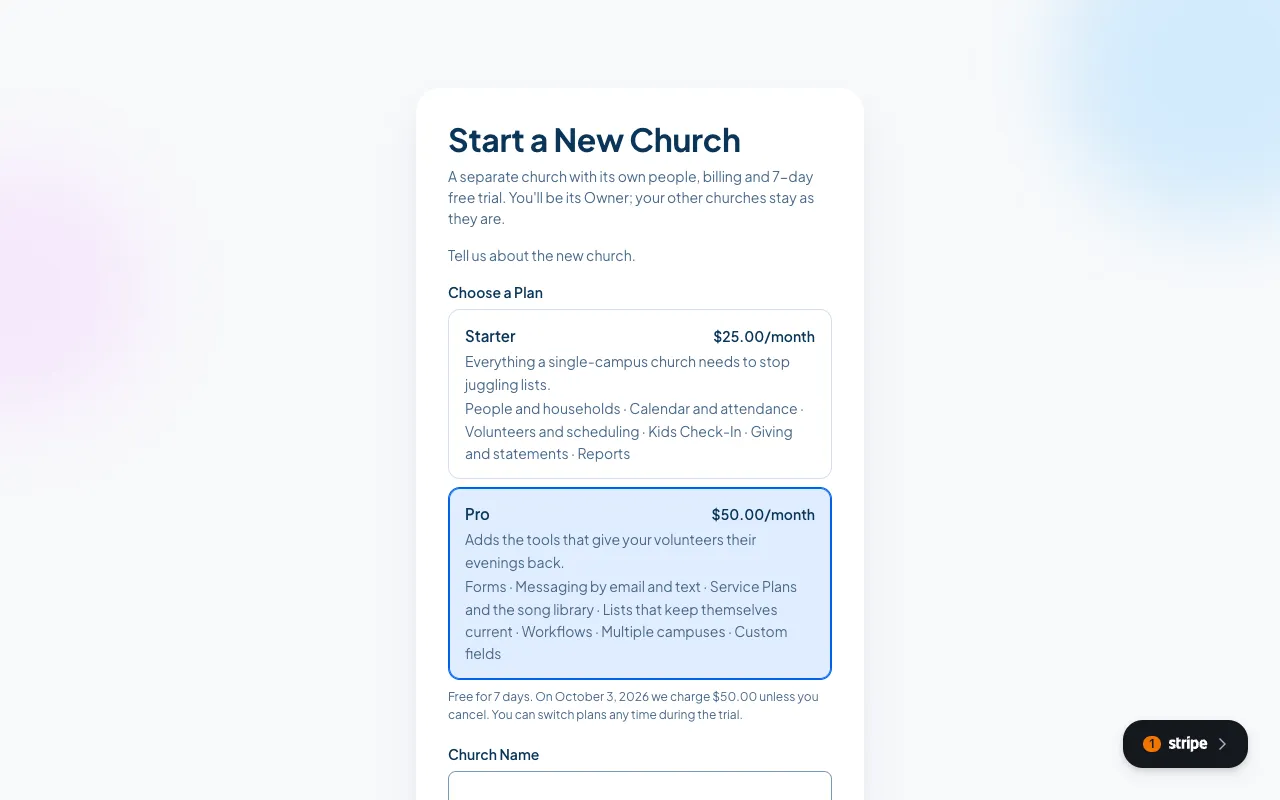
2. Choose a plan
Section titled “2. Choose a plan”Starter or Pro, the same as any other church. The new church gets its own 7 day free trial, whatever your other churches are on.
3. Fill in the church’s details
Section titled “3. Fill in the church’s details”Church Name, Church URL and the Main Campus Address. The EIN and a coupon are optional. Each church needs its own Church URL, since the URL is how the public reaches its giving page and forms.
4. Enter a card and choose Start Free Trial
Section titled “4. Enter a card and choose Start Free Trial”Billing is per church, so this church gets its own card and its own invoices. It can be the same card.
You become the Owner of the new church, and your other churches are untouched. The Church picker in the sidebar now lists both.
Good to know
Section titled “Good to know”- Level Up watches for repeats. When one login starts three churches within 90 days, our team is told, so we can check that they are real churches. There is nothing to do about it if they are.
- Cancelling one church does not touch the others.
Still stuck? Contact the Help Desk at help@mychurchhq.com and tell us which guide you were following.