Team and Access
Invite a Teammate
Everyone who works in Church HQ gets their own login. Never share one. Each person’s own login is what makes the audit log and the activity trail worth anything.
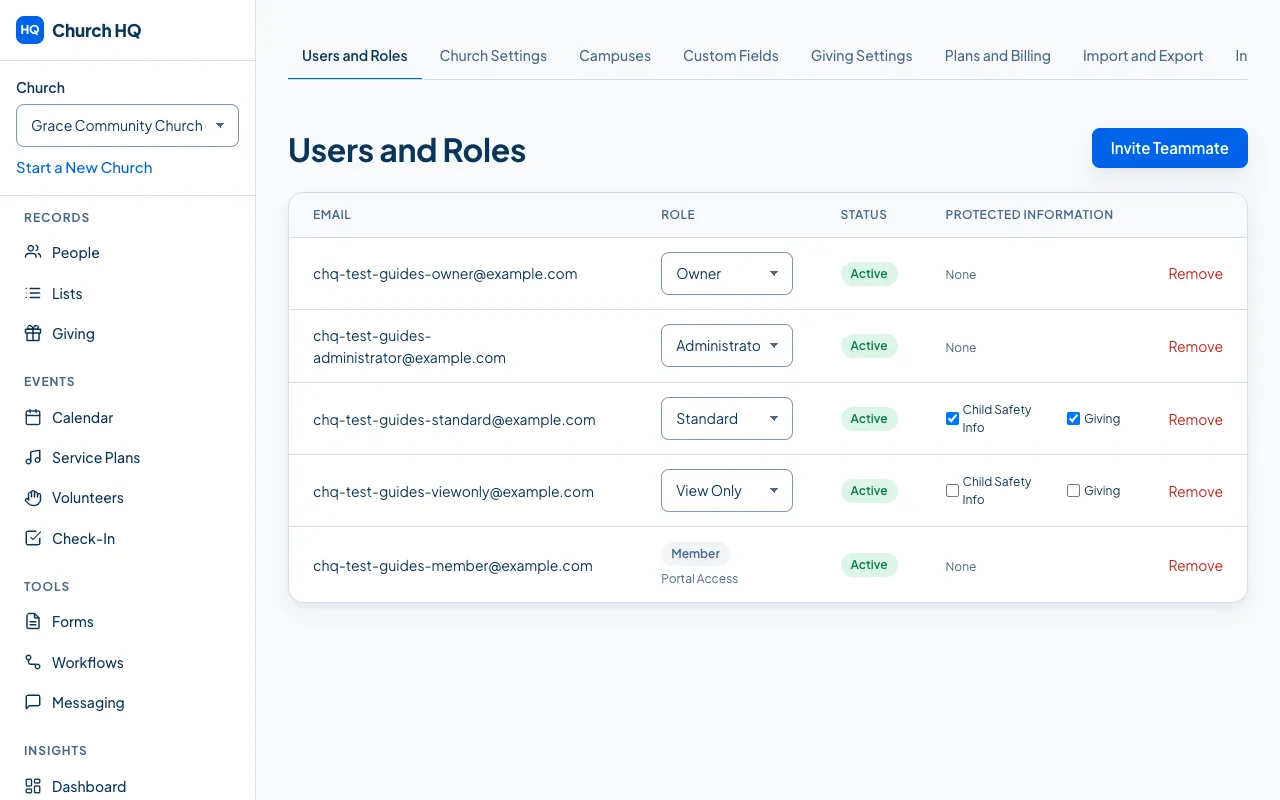
1. Open Users and Roles
Section titled “1. Open Users and Roles”In the sidebar, choose Administration, then the Users and Roles tab.
2. Choose Invite Teammate
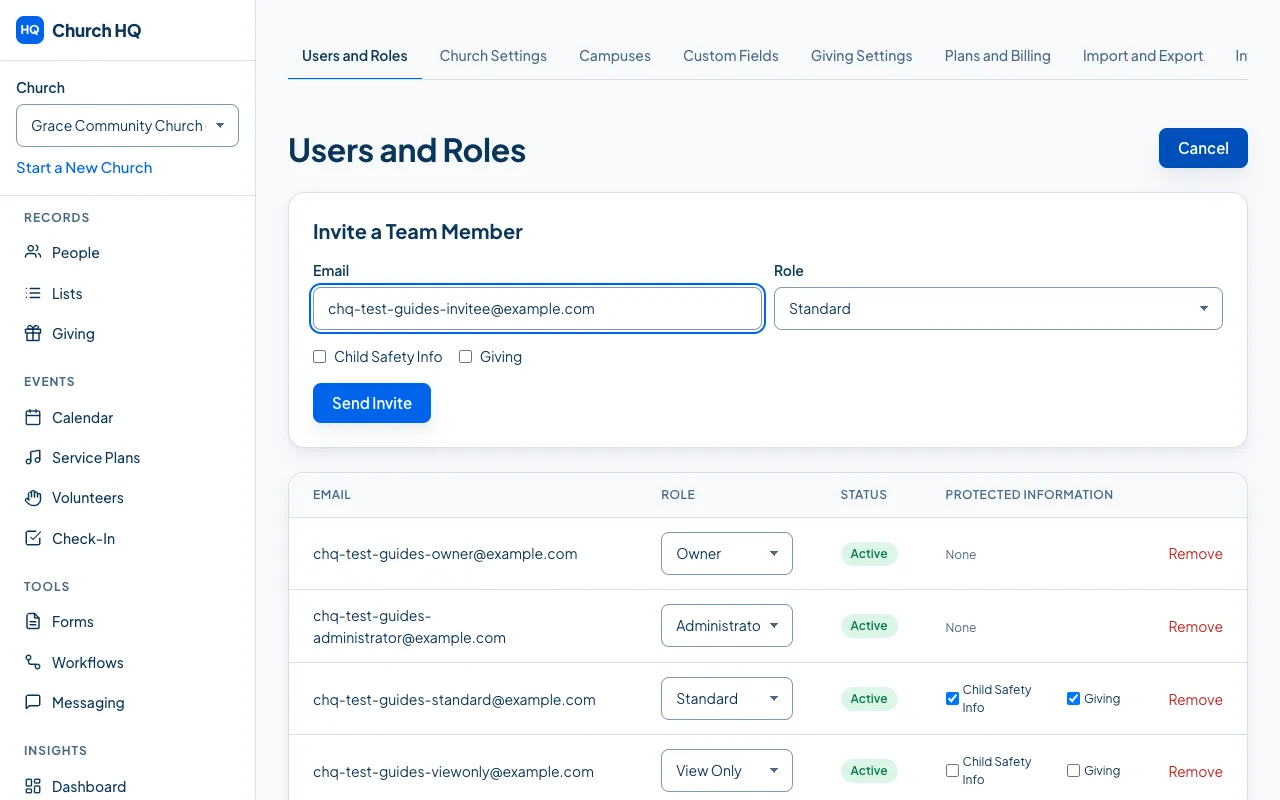
Section titled “2. Choose Invite Teammate”The invitation form opens under the heading Invite a Team Member.
3. Enter their email address
Section titled “3. Enter their email address”Use the address they will sign in with. If they already have a Church HQ login at another church, use that same address and the invitation attaches your church to the login they have.
4. Choose a role
Section titled “4. Choose a role”- Owner can do everything, including billing and closing the church.
- Administrator runs the church day to day.
- Standard does the everyday work: people, events, volunteers, forms and messages.
- View Only can read, but change nothing.
See Change a Teammate’s Role for the detail.
5. Decide about protected information
Section titled “5. Decide about protected information”Giving and Child Safety Info are hidden from Standard and View Only teammates unless you tick them here. Give access only to people who need it. See Give or Remove Access to Protected Information.
6. Send the invitation
Section titled “6. Send the invitation”The person appears in the list straight away with the status Invited.
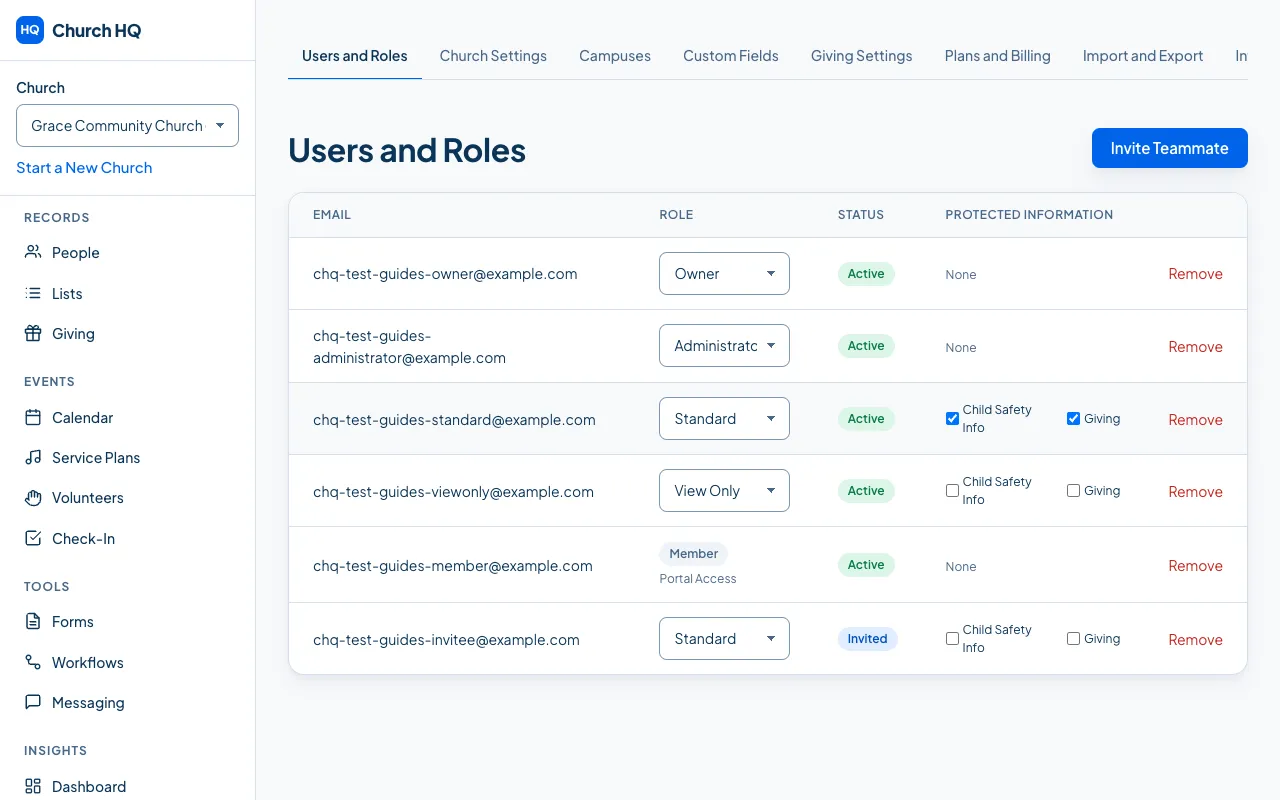
Church HQ emails them a link. What they do next is in Accept an Invitation.
Good to know
Section titled “Good to know”- Nothing happens until they accept. An invited person has no access until they follow the link and set up their login.
- Invitations do not expire, but if one goes missing, remove the row and invite them again.
- Members of your congregation are not invited here. A member’s portal login comes from their person record or their first online donation. See Sign In to the Member Portal.
- A login and a person record are two different things. A teammate can have a login without being in your People list, which is what you want for someone like a bookkeeper who is not part of the congregation. It also means the Owner who signed the church up is not automatically in People. If a teammate should be schedulable as a volunteer, checked in, tagged or included in a list, add them under People. Until then, screens that name who did something, such as who added an attachment, show their email address rather than their name.
Still stuck? Contact the Help Desk at help@mychurchhq.com and tell us which guide you were following.