Kids Check-In
Start a Check-In Session
A session is one service on one day at one campus: “Sunday 9:00 Service” at the main campus. Every check-in and checkout belongs to a session, which is what makes the numbers afterwards mean something.
-
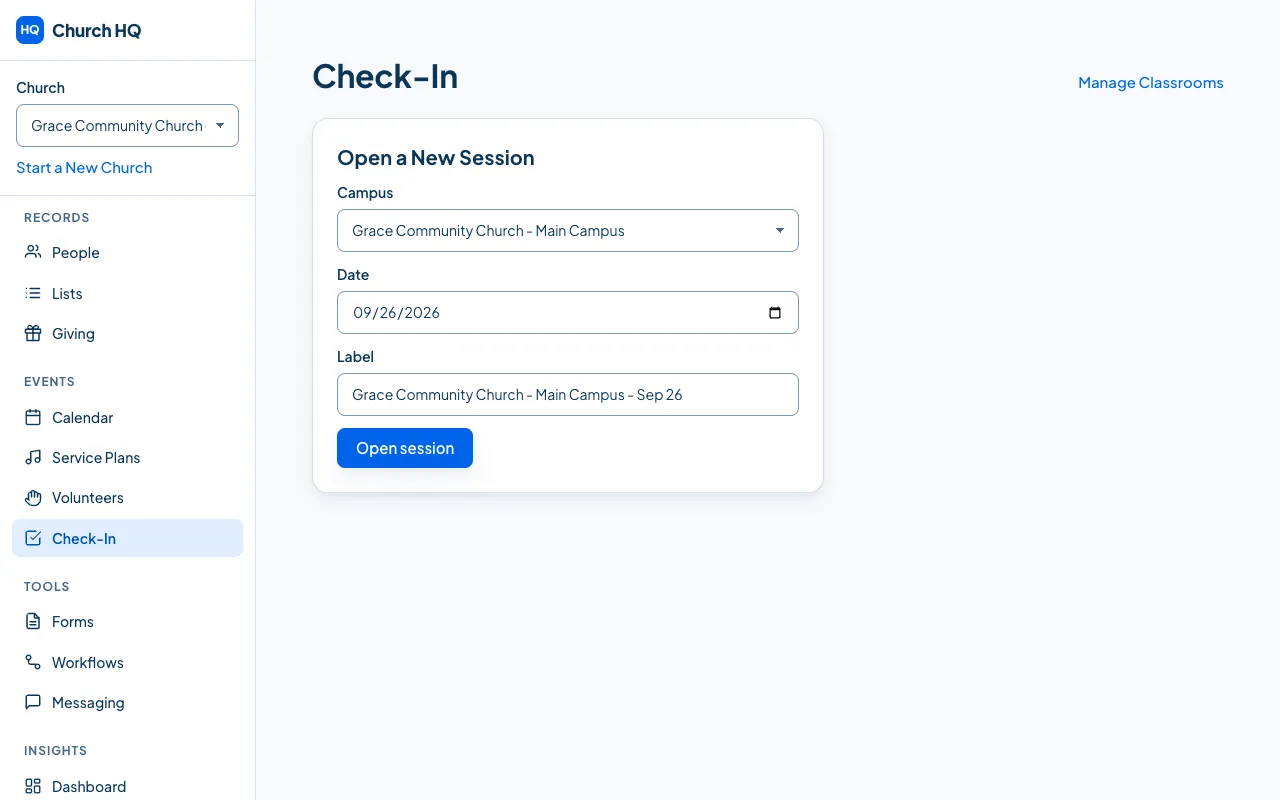
Choose Check-In in the sidebar.
-
Under Open a New Session, choose the Campus, check the Date, and give it a Label your volunteers will recognise, such as
Sunday 9:00 Service. -
Choose Open session.
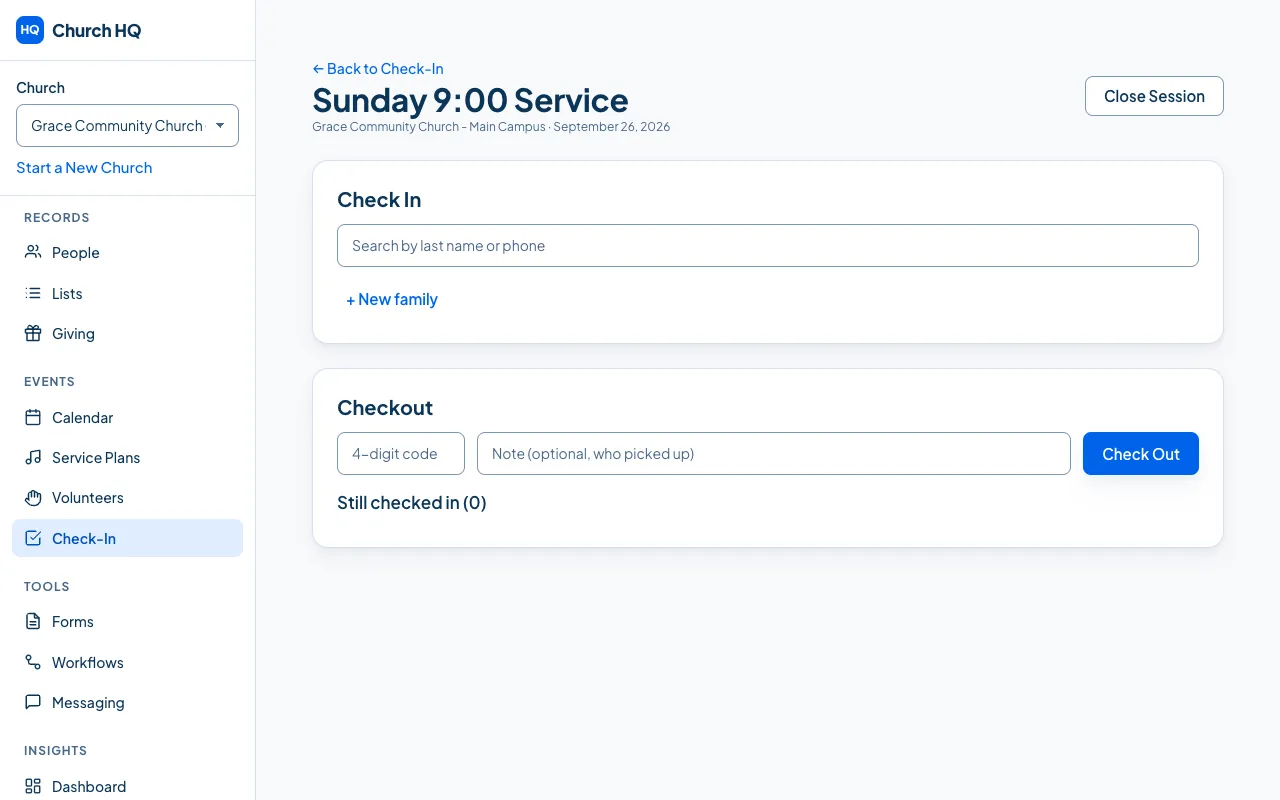
The session opens and you land on the check-in screen for it, with Check In on one side and Checkout on the other.
On the day
Section titled “On the day”-
Open sessions are listed at the top of the Check-In screen, so a volunteer arriving later chooses the right one rather than opening a second.
-
One session per service. If two people open a session for the same service, you end up with the children split across both.
-
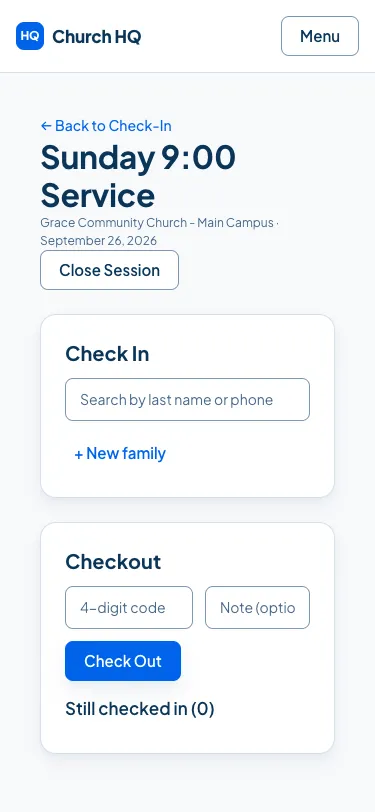
Phones work. Volunteers can run check-in from a phone as well as a laptop.
Closing the session
Section titled “Closing the session”When the service is over, choose Close Session. If any children are still checked in, Church HQ lists them by name and code and asks whether to close anyway, so nobody is left checked in by mistake.
Still stuck? Contact the Help Desk at help@mychurchhq.com and tell us which guide you were following.