Kids Check-In
Set Up Classrooms
Classrooms are the rooms children go to on a Sunday: Nursery, Toddlers, Kindergarten, Elementary, whatever your church calls them. Setting them up once means check-in can suggest the right room for each child, so a volunteer at the desk does not have to know every family.
Kids Check-In is only visible to people who have been given access to children’s information. See Give or Remove Access to Protected Information.
-
Choose Check-In in the sidebar, under EVENTS.
-
Choose Manage Classrooms at the top right.
-
In Add Classroom, fill in:
- Room Name, for example
Nursery - Min grade and Max grade, if the room is defined by school grade
- Min Age (Months) and Max Age (Months), if it is defined by age, which is usual for rooms below school age
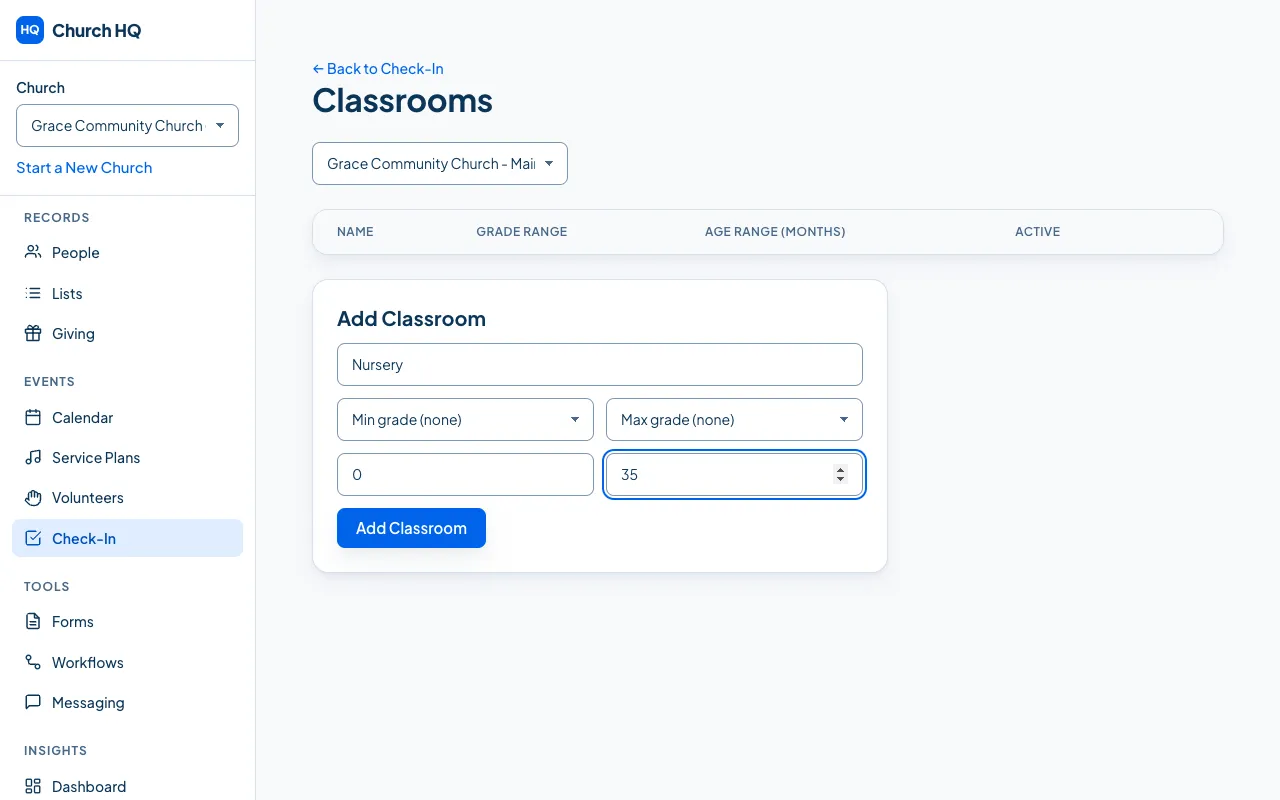
- Room Name, for example
-
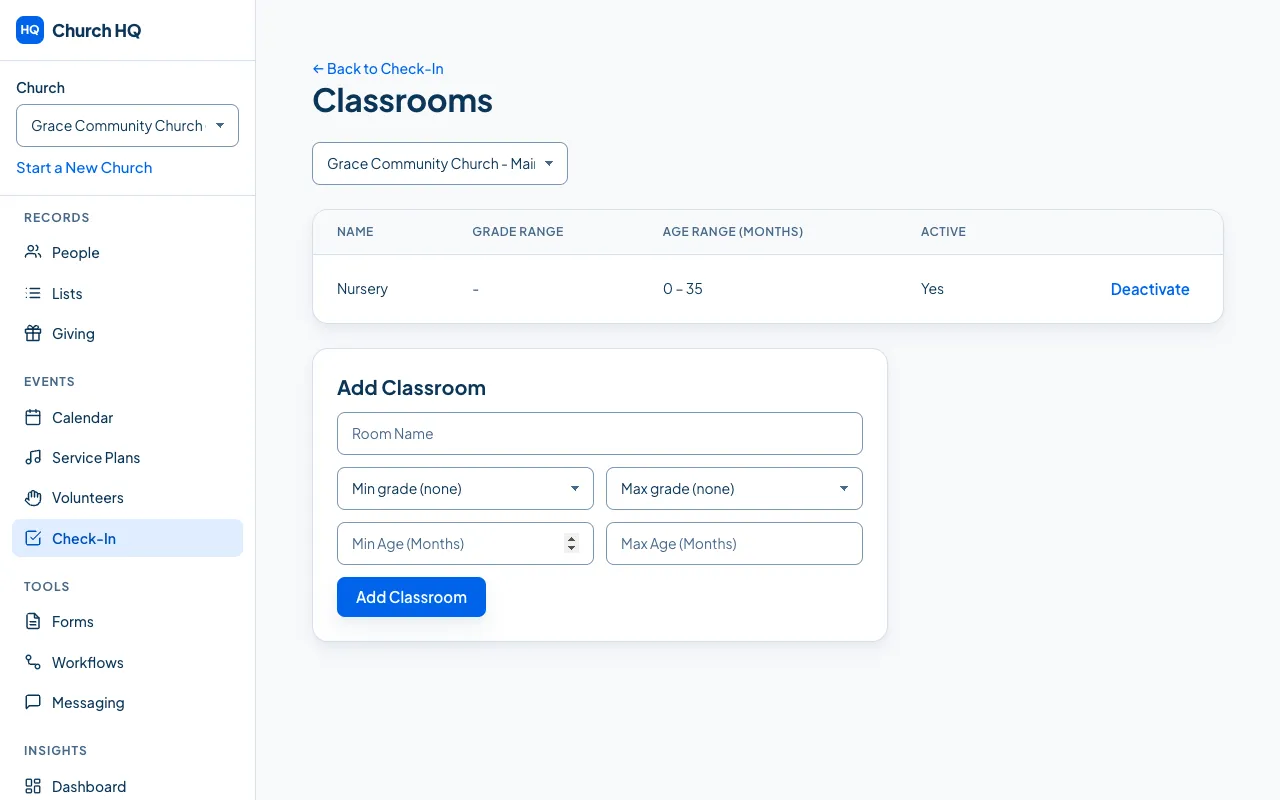
Choose Add Classroom.
Your rooms appear in the list, with their ranges and whether they are in use.
How Church HQ suggests a room
Section titled “How Church HQ suggests a room”When a child is checked in, Church HQ offers a room in this order:
- the room pinned to that child, if someone chose Remember for next time at an earlier check-in
- the room whose grade range matches the child’s grade
- the room whose age range matches the child’s birthday
A volunteer can always pick a different room. The suggestion saves time; it never overrules anyone.
Good to know
Section titled “Good to know”- A room per campus. Each campus has its own rooms, chosen with the campus picker at the top.
- Deactivate rather than delete. Deactivate takes a room out of the pickers and keeps its history. Reactivate brings it back.
- Children with no birthday and no grade will have no suggestion, so the volunteer chooses. Adding birthdays to your children’s records is worth the effort.
Still stuck? Contact the Help Desk at help@mychurchhq.com and tell us which guide you were following.