Kids Check-In
Check In a New Family
A family walks up who are not in your records. You do not have to add them in People first: check-in can take them as it finds them, and the records it creates are the real ones.
-
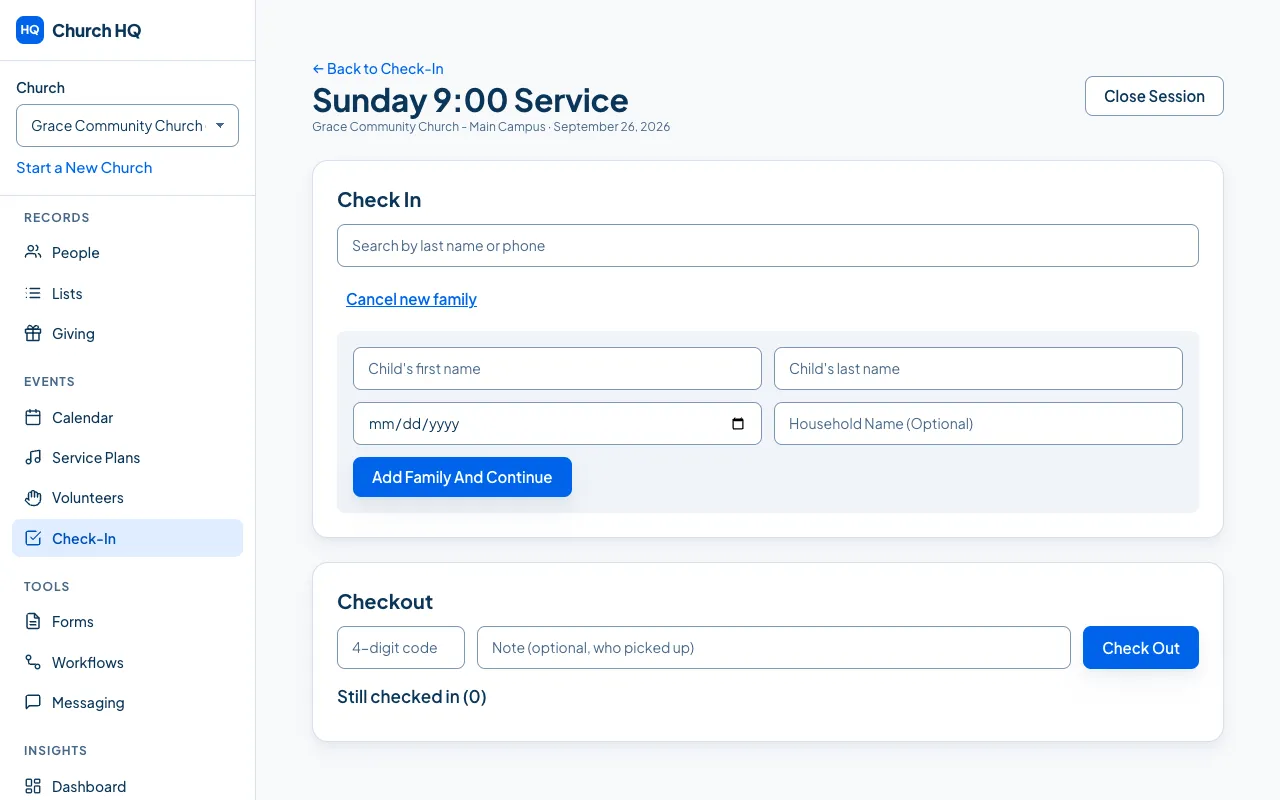
In an open session, under Check In, choose + New family.
-
Fill in the family’s details: the household name, the parent or guardian, and each child with their birthday.
-
Save. Church HQ creates the household and everyone in it, and runs the same duplicate check it runs anywhere else, so a family who came last month is not added twice.
-
The children appear in the check-in list. Carry on as usual: confirm their rooms, then Confirm check-in and print the tags. See Check In a Child.
Good to know
Section titled “Good to know”- Birthdays matter here. They are what lets Church HQ suggest a room this week and next.
- The family is now yours to follow up. They are in People from this moment, so they can be added to a list, sent a welcome message, or followed up by a workflow.
- Keep the desk moving. If the queue is long, take the essentials and finish the rest later from the person’s record.
Still stuck? Contact the Help Desk at help@mychurchhq.com and tell us which guide you were following.