People and Households
Find and Merge Duplicates
Duplicates happen: someone fills in a form with a different email, or a family is added twice after an import. Church HQ warns you when it spots one, and merging puts the two records back together without losing anything.
The warning when you add someone
Section titled “The warning when you add someone”When you choose Save Person, Church HQ checks what you already have before it saves.
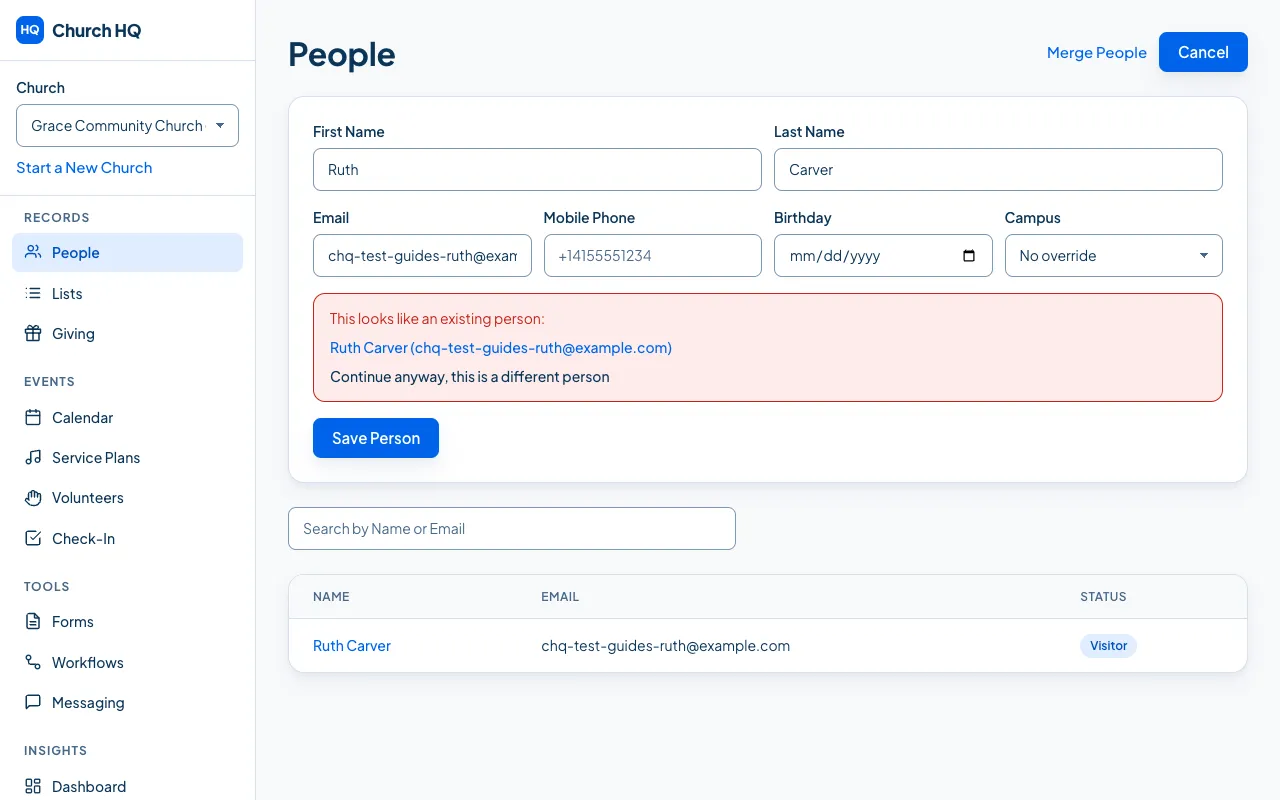
- This looks like an existing person means the details match closely, and nothing has been saved yet. Choose the name shown to open that record instead, or, if it really is a different person with the same details, choose Continue anyway, this is a different person.
- Possible duplicate appears after the person is saved. It is a nudge to check, not a warning that something went wrong.
Merge two records
Section titled “Merge two records”-
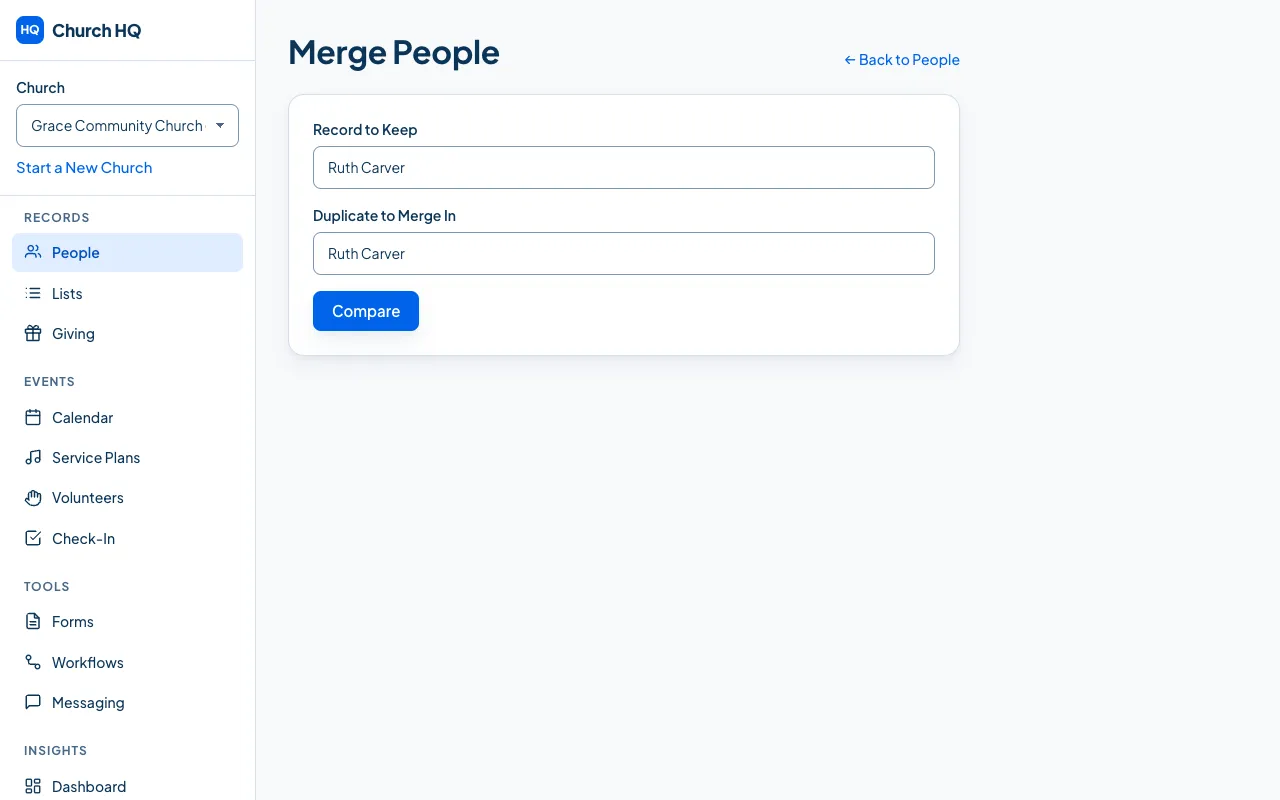
Choose People in the sidebar, then Merge People at the top.
-
In Record to Keep, search for the record you want to keep. This is the one that stays, with its id, its giving history and everything attached to it.
-
In Duplicate to Merge In, search for the duplicate.
-
Compare the two records side by side, and choose which value to keep where they differ.
-
Confirm the merge.
What a merge does
Section titled “What a merge does”- The record you keep stays, with its history intact.
- Everything attached to the duplicate moves across: giving, attendance, serving, check-ins, form submissions, notes and tags.
- The duplicate is archived rather than deleted, so nothing is lost and the merge is on the record.
- The merge is written to the audit log, with who did it.
Good to know
Section titled “Good to know”- Merge the right way round. Keep the record with the giving history where you can; it saves checking afterwards.
- Only Owners, Administrators and Standard teammates can merge. View Only cannot.
- Check after a big import. Imports are the usual source of duplicates. See Import People from a Spreadsheet.
Still stuck? Contact the Help Desk at help@mychurchhq.com and tell us which guide you were following.