Volunteers
Schedule a Volunteer
Volunteers are scheduled onto an event: a service, a rehearsal, a workday. Everything happens on the event itself, so you can see the whole Sunday in one place.
Before you start
Section titled “Before you start”- The event is on the calendar. See Add an Event.
- The team and its positions exist. See Create a Team.
-
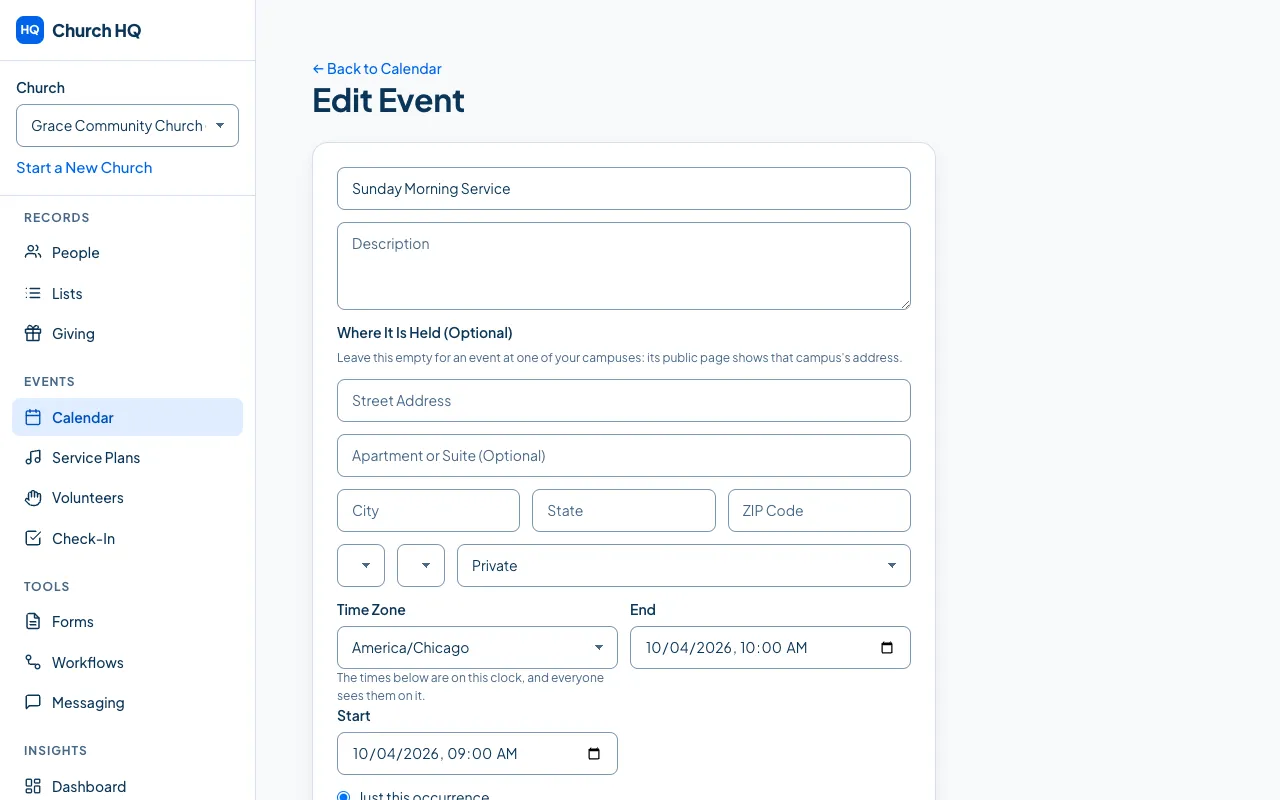
Choose Calendar in the sidebar, open the event, and find Volunteers.
-
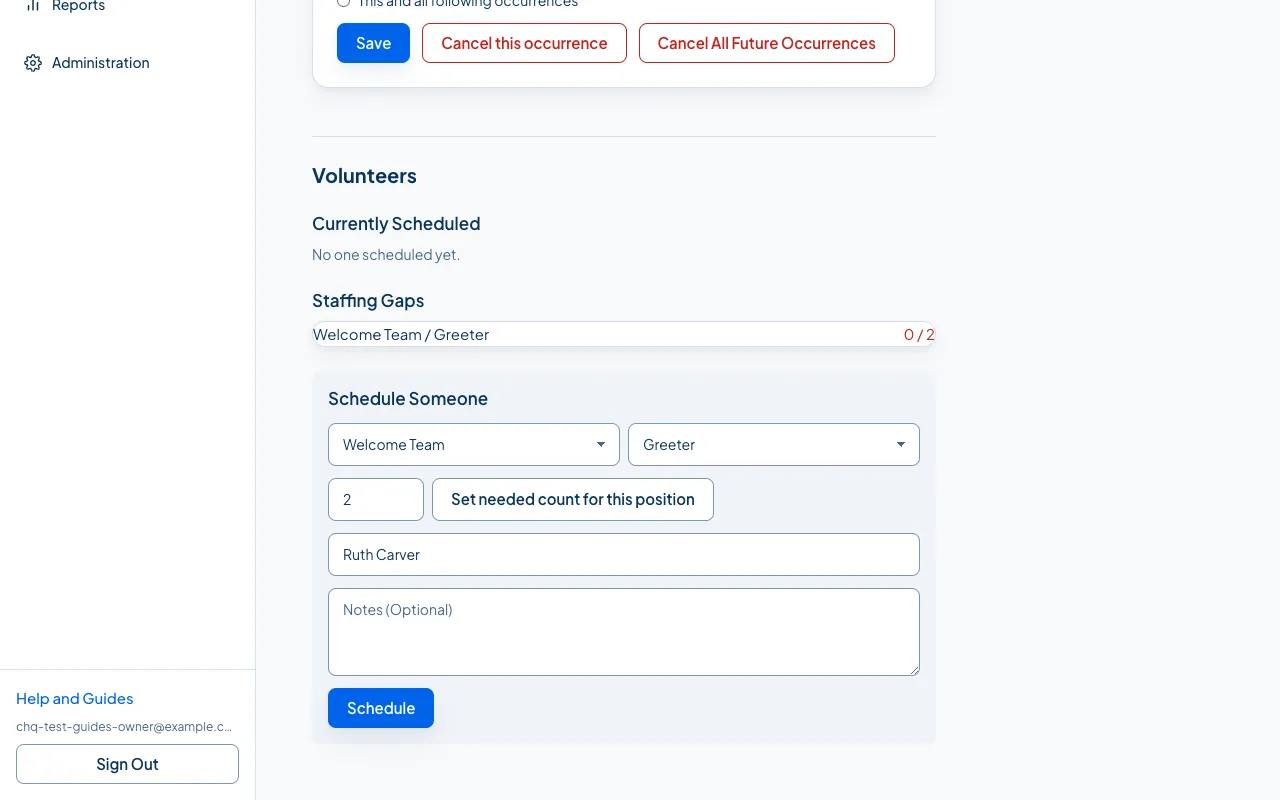
Under Schedule Someone, choose the Team and the Position.
-
Say how many are needed for that position and choose Set needed count for this position. That is what turns an empty rota into a staffing gap you can see.
-
Search for the person, choose them from the list, and add a note if it helps.
-
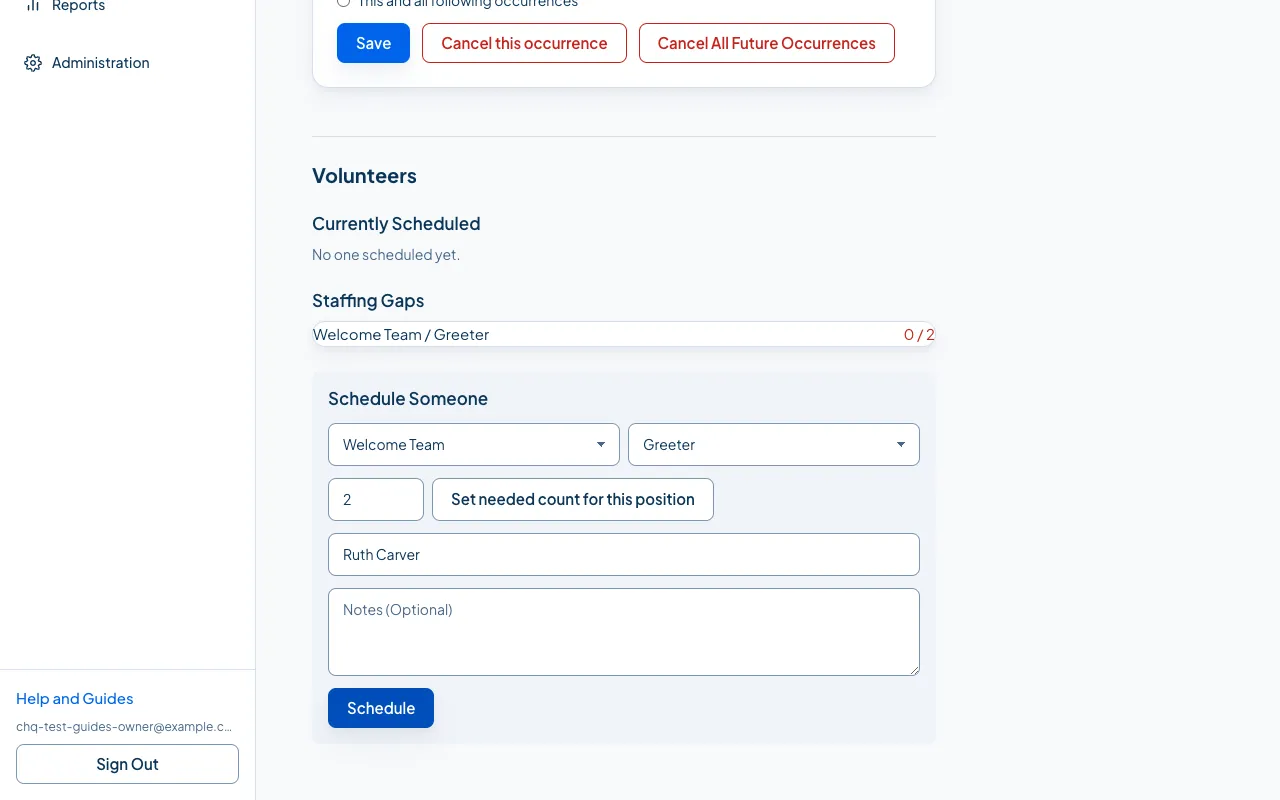
Choose Schedule.
Church HQ emails them and asks them to accept or decline.
Watching the gaps
Section titled “Watching the gaps”The event lists each position as accepted / needed, in red while it is short and green once it is covered. That is the list to run down on a Thursday.
If someone has no portal account
Section titled “If someone has no portal account”Church HQ says so: This person needs portal access before they can be scheduled, send an invite now? Choose Send Invite and Schedule and it does both: the invitation goes out, and they are scheduled once they are in.
This is deliberate. A volunteer needs somewhere to accept or decline, and that is the Member Portal.
How volunteers answer
Section titled “How volunteers answer”- From the email, with one click, without signing in. See Accept or Decline from the Email.
- In the Member Portal, where they can see everything they are scheduled for. See Respond in the Member Portal.
Still stuck? Contact the Help Desk at help@mychurchhq.com and tell us which guide you were following.