Messaging
Connect Twilio for Text Messages
Church HQ sends texts through your church’s own Twilio account. Texts come from your church’s own phone number, Twilio bills your church directly for the number and each message, and replies, including STOP, go to your church. Church HQ never charges for texts and never sends them from a shared number.
Email needs none of this and works out of the box. Twilio is only for SMS.
Allow a few days to a few weeks before your first text can be delivered, because US carriers must approve your number first (step 3). Everything else can be done while you wait.
1. Create and upgrade a Twilio account
Section titled “1. Create and upgrade a Twilio account”- Sign up at twilio.com/try-twilio with an email address your church controls for the long term. A shared office address is better than one person’s inbox.
- Verify your email and phone number when Twilio asks.
- Upgrade the account by adding a payment method, using the Upgrade button on the Twilio Console home page. This is required, not optional: carrier approval in step 3 cannot be done on a trial account, and trial accounts can only text a handful of pre-verified numbers using Twilio’s own sample wording.
A phone number costs a small monthly fee, and each text segment is billed per message. See Twilio’s US SMS pricing for current rates. Twilio may offer nonprofit discounts; ask their sales team.
2. Get a phone number
Section titled “2. Get a phone number”In the Twilio Console, go to Phone Numbers, then Buy a number. There are two sensible choices:
- Toll-free number, which suits most churches. An 8XX number. Approval is free and needs only a verification form.
- Local number, with your area code, which some churches prefer. US carriers require A2P 10DLC registration for these, which has registration fees and more paperwork.
Make sure the number you buy lists SMS among its capabilities.
3. Get your number approved by carriers
Section titled “3. Get your number approved by carriers”US carriers block texts from unapproved business numbers. Until approval comes through, sends fail with error 30032 (toll-free) or 30034 (local). This step takes the longest, so start it early.
For a toll-free number, submit toll-free verification from the number’s settings in the Twilio Console. Twilio’s toll-free verification guide shows the exact screens. Answers that help approval go smoothly:
- Business details: your church’s legal name, address and website, exactly as they appear elsewhere, and your EIN if you have one.
- Use case: something like “Announcements, event reminders and volunteer scheduling for church members and attendees.”
- How people opt in: be specific, for example “Members give their mobile number and tick a box agreeing to receive texts on our connect card or website sign-up form.” Carriers reject vague answers here more than anything else.
- Sample message: real wording with your church’s name, for example “Grace Church: Volunteer training is Sunday at 9am in Room 104. Reply STOP to opt out.”
- Monthly volume: a realistic estimate of texts per month.
For a local number, complete A2P 10DLC brand and campaign registration using Twilio’s A2P 10DLC guide. The same advice about opt-in and sample messages applies.
Twilio emails you when the review is done. You can connect Twilio to Church HQ, steps 4 to 6, before approval comes through; texts simply will not be delivered until it does.
4. Find your Account SID and Auth Token
Section titled “4. Find your Account SID and Auth Token”- Open the Twilio Console home page. The Account SID and Auth Token are in the account information area.
- The Account SID starts with
AC. Copy the whole value. - Reveal the Auth Token, then copy it.
Do not use an API Key, which starts with SK. Church HQ needs the Account SID and Auth Token,
because Twilio signs every STOP and START notification with the Auth Token and Church HQ uses it to
confirm the notification really came from Twilio.
5. Connect Twilio to Church HQ
Section titled “5. Connect Twilio to Church HQ”An Owner or Administrator does this once for the whole church.
-
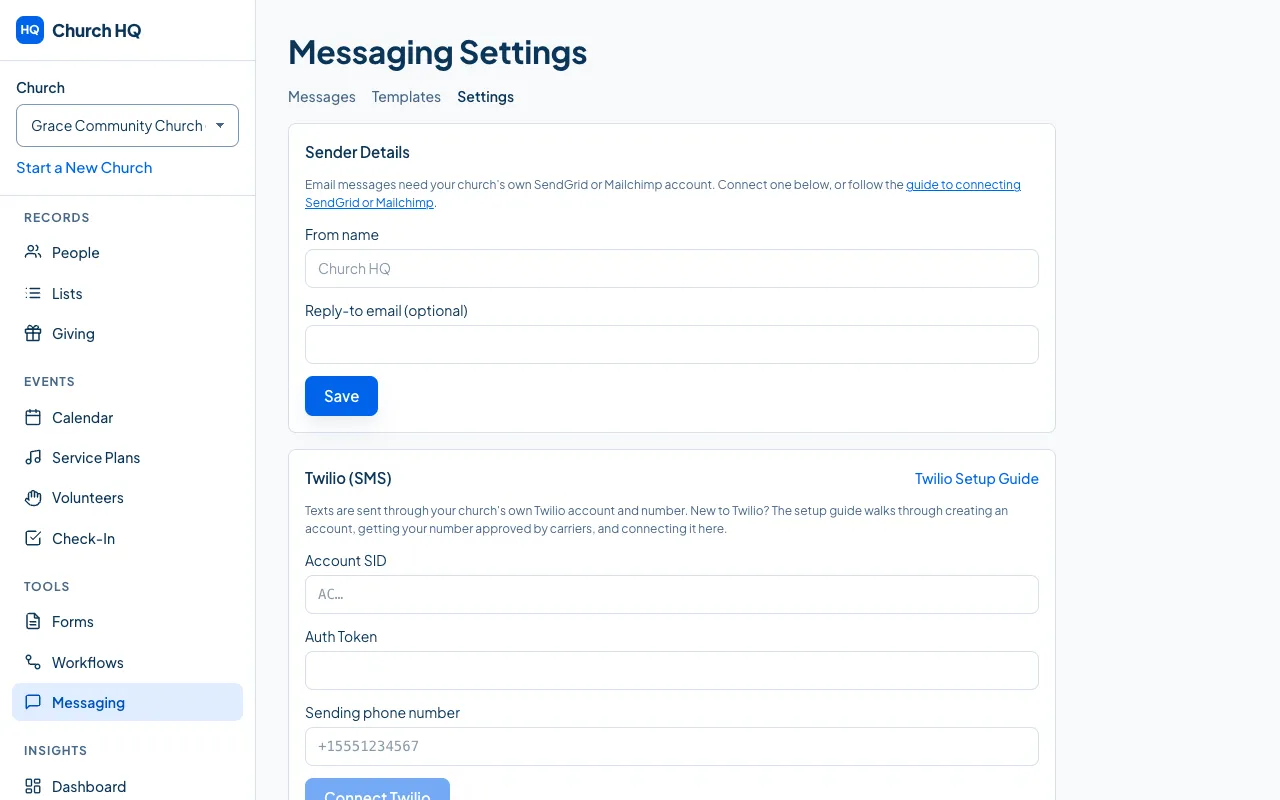
In Church HQ, choose Messaging, then Settings, and find the Twilio (SMS) section.
-
Paste the Account SID and Auth Token.
-
Enter your Twilio phone number with the country code and no spaces, for example
+18335551234. -
Choose Connect Twilio.
Church HQ checks the credentials with Twilio before saving them, stores the Auth Token encrypted, and from then on shows only its last four characters.
Once connected, anyone on your staff who can send messages can choose SMS, and they never see the credentials. If you ever reset your Auth Token in Twilio, reconnect here with the new one.
6. Turn on STOP and START handling
Section titled “6. Turn on STOP and START handling”This tells Twilio to let Church HQ know whenever someone replies STOP or START, so your records match reality. Skip it and people can still opt out with Twilio, but Church HQ will not know.
Your church’s webhook URL is on Messaging, then Settings, visible to an Owner or Administrator.
- In the Twilio Console, go to Phone Numbers, Manage, Active numbers, and choose your number.
- Find the messaging settings, on the Configure tab, in Messaging Configuration.
- For A message comes in, choose Webhook, paste your webhook URL, and choose HTTP POST.
- Leave any status callback field empty. Church HQ sets its own for each message.
- Choose Save configuration at the very bottom of the page. Nothing is saved until you do.
If your number belongs to a Twilio Messaging Service, the same setting lives on the service instead, under Integration, Incoming Messages, Send a webhook. Each church has its own URL; never reuse another church’s.
7. Send a test text
Section titled “7. Send a test text”- Make sure your own person record in Church HQ has your mobile number.
- Choose Messaging, then New message, choose SMS, and pick yourself as the recipient.
- Send it, then open the message to see its delivery status. Delivered means your phone got it.
- Reply STOP from your phone. Your profile’s communication preferences should show SMS as opted out. Reply START to opt back in.
8. How opt-outs work
Section titled “8. How opt-outs work”Every text Church HQ sends ends with “Reply STOP to opt out.”, unless your message already mentions STOP.
When someone replies STOP (or UNSUBSCRIBE, CANCEL, END, QUIT), Twilio stops all texts from your number to them, and Church HQ marks them opted out so they are skipped in every future send.
Only the person can undo it, by texting START (or YES, UNSTOP) to your number. Opting them back in on their profile only changes Church HQ’s record; Twilio keeps blocking texts to them until they text START themselves.
Opting out of texts does not affect email, and the other way round.
Only text people who agreed to receive texts from your church. Texting rules such as the US TCPA apply to churches too. If you are unsure, ask someone who knows your situation.
9. If something goes wrong
Section titled “9. If something goes wrong”A failed text shows Twilio’s error code in the message’s delivery list. The common ones:
| Code | What it means |
|---|---|
| 30032 | Your toll-free number is not verified yet. See step 3. |
| 30034 | A2P 10DLC registration is not finished. See step 3. |
| 21610 | The person replied STOP at some point. Only they can undo it, by texting START. |
| 21608 | Your Twilio account is still a trial. Upgrade it, step 1. |
| 21614 or 21211 | Not a valid mobile number. Check the person’s number on their record. US numbers work with or without +1. |
Still stuck? Contact the Help Desk at help@mychurchhq.com and tell us which guide you were following.